In the first four parts of this article series, we covered reading and writing files, directory and file path construction, and directory and file operations.
Up to now, we have only read and written byte arrays and Strings. In this fifth part, you will learn how to write and read structured data with DataOutputStream and DataInputStream. The article will answer the following questions in detail:
- How to store primitive data types (int, long, char, etc.) in binary files and how to read them?
- What are the different ways to write Strings to and read them from binary files?
You can find the code examples from this article in my GitHub repository.
Writing structured data to and reading from binary files
Using DataOutputStream and DataInputStream, it is possible to write primitive data types (byte, short, int, long, float, double, boolean, char) as well as Strings to a binary file and read them out again. DataOutputStream and DataInputStream are wrapped around an OutputStream (e.g. FileOutputStream) or an InputStream (e.g. FileInputStream) using the Decorator pattern.
Writing structured data with DataOutputStream
The following example writes variables of all primitive data types into the file test1.bin:
public class TestDataOutputStream1 {
  public static void main(String[] args) throws IOException {
    try (var out = new DataOutputStream(new BufferedOutputStream(
          new FileOutputStream("test1.bin")))) {
      out.writeByte((byte) 123);
      out.writeShort((short) 1_234);
      out.writeInt(1_234_567);
      out.writeLong(1_234_567_890_123_456L);
      out.writeFloat((float) Math.E);
      out.writeDouble(Math.PI);
      out.writeBoolean(true);
      out.writeChar('€');
    }
  }
}
The file test1.bin now contains the following bytes:
7b 04 d2 00 12 d6 87 00 04 62 d5 3c 8a ba c0 40 2d f8 54 40 09 21 fb 54 44 2d 18 01 20 acThe values were therefore written sequentially to the file in big-endian format:
7b= 12304 d2= 1,23400 12 d6 87= 1,234,56700 04 62 d5 3c 8a ba c0= 1,234,567,890,123,45640 2d f8 54= 2.718281740 09 21 fb 54 44 2d 18= 3.14159265358979301= true20 ac= “€” (Unicode U+20AC)
Reading structured data with DataInputStream
Just as easily as we wrote the data, we can read it back:
public class TestDataInputStream1 {
  public static void main(String[] args) throws IOException {
    try (var in = new DataInputStream(new BufferedInputStream(
          new FileInputStream("test1.bin")))) {
      System.out.println(in.readByte());
      System.out.println(in.readShort());
      System.out.println(in.readInt());
      System.out.println(in.readLong());
      System.out.println(in.readFloat());
      System.out.println(in.readDouble());
      System.out.println(in.readBoolean());
      System.out.println(in.readChar());
    }
  }
}
The program outputs the following:
123
1234
1234567
1234567890123456
2.7182817
3.141592653589793
true
€
That’s precisely the data we wrote.
Different data types for writeByte() and writeShort()
If you take a closer look at the write methods of DataOutputStream, you will notice that writeByte(), writeShort(), and also writeChar() each take an int as parameter instead of the particular data type. The signatures come from the DataOutput interface; its Javadoc gives no reason, but it does state the consequence: writeByte() ignores the 24 high-order bits of the passed value, writeShort() and writeChar() the 16 high-order bits. This is error-prone, and you should know what happens if the passed values do not fit into the mentioned data type.
What happens in that case? Let’s test it for writeByte() with the following code. I have added the resulting bytes as comments to the code to make it easier to relate them.
public class TestDataOutputStream2 {
  public static void main(String[] args) throws IOException {
    try (var out = new DataOutputStream(new BufferedOutputStream(
          new FileOutputStream("test2.bin")))) {
      out.writeByte(1000);  // --> e8
      out.writeByte(128);   // --> 80
      out.writeByte(127);   // --> 7f (Byte.MAX_VALUE)
      out.writeByte(0);     // --> 00
      out.writeByte(-128);  // --> 80 (Byte.MIN_VALUE)
      out.writeByte(-129);  // --> 7f
      out.writeByte(-1000); // --> 18
    }
  }
}
Overflows are, therefore, not indicated by an error message. What we see instead is the last byte of each number’s int representation. We can show that with the following code:
public class TestDataOutputStream3 {
  public static void main(String[] args) throws IOException {
    try (var out = new DataOutputStream(new BufferedOutputStream(
          new FileOutputStream("test2.bin")))) {
      out.writeInt(1000);  // --> 00 00 03 e8
      out.writeInt(128);   // --> 00 00 00 80
      out.writeInt(127);   // --> 00 00 00 7f
      out.writeInt(0);     // --> 00 00 00 00
      out.writeInt(-128);  // --> ff ff ff 80
      out.writeInt(-129);  // --> ff ff ff 7f
      out.writeInt(-1000); // --> ff ff fc 18
    }
  }
}
The same applies to writeShort(). Here I have included the int representation directly in the comments after the writeShort() calls.
public class TestDataOutputStream4 {
  public static void main(String[] args) throws IOException {
    try (var out = new DataOutputStream(new BufferedOutputStream(
          new FileOutputStream("test2.bin")))) {
      out.writeShort(1000000);  // --> 42 40 (int: 00 0f 42 40)
      out.writeShort(32768);    // --> 80 00 (int: 00 00 80 00)
      out.writeShort(32767);    // --> 7f ff (int: 00 00 7f ff)
      out.writeShort(0);        // --> 00 00 (int: 00 00 00 00)
      out.writeShort(-32768);   // --> 80 00 (int: ff ff 80 00)
      out.writeShort(-32769);   // --> 7f ff (int: ff ff 7f ff)
      out.writeShort(-1000000); // --> bd c0 (int: ff f0 bd c0)
    }
  }
}
There is a counterpart for reading: besides readByte() and readShort(), DataInputStream offers readUnsignedByte() and readUnsignedShort(). The byte 80 written by writeByte(128) comes back as -128 from readByte(), but as 128 from readUnsignedByte() – as an int, because that value does not fit into a byte.
Different data type for writeChar()
A char is represented by two bytes in Java and can be assigned to an int without type casting. The following is perfectly ok:
int a    = 'a'; // Unicode U+0061
int euro = '€'; // Unicode U+20AC
int word = '字'; // Unicode U+5B57
Therefore, it is syntactically correct for writeChar() to accept an int. But what happens if we pass values that are greater than two bytes or negative? Let’s try it out. In the comments in the following code example, you can see the resulting bytes and – for the large and negative numbers – also the respective int representations. Again, we see that the last two bytes of the int representations are used.
public class TestDataOutputStream5 {
  public static void main(String[] args) throws IOException {
    try (var out = new DataOutputStream(new BufferedOutputStream(
          new FileOutputStream("test5.bin")))) {
      out.writeChar('a');  // --> 00 61
      out.writeChar('€');  // --> 20 ac
      out.writeChar('字'); // --> 5b 57

      out.writeChar(723_790_628); // --> 2b 24 (int: 2b 24 2b 24)
      out.writeChar(-100);        // --> ff 9c (int: ff ff ff 9c)
      out.writeChar(-16_776_261); // --> 03 bb (int: ff 00 03 bb)
    }
  }
}
If we read the created file back with six readChar() calls (you can find the code as TestDataInputStream5 in the GitHub repository), we get the following output:
a
€
字
⬤
ワ
λ
For example, 723,790,628 has now been converted to the Unicode character U+2B24 (black large circle) via the hexadecimal representation 0x2b242b24 – the last two bytes of which are 0x2b24. -100 became U+FF9C (Halfwidth Katakana Letter Wa) via 0xffffff9c. And -16,776,261 became U+03BB (Greek Small Letter Lamda) via 0xff0003bb.
Writing Strings with DataOutputStream
DataOutputStream confuses us with three different methods to write Strings:
writeBytes(String s)writeChars(String s)writeUTF(String s)
DataInputStream, on the other hand, offers only the readUTF() method to read a String – besides a readLine() method marked as deprecated, which we will not consider further here.
How are the three write methods different? Let’s test it with a String that contains all the different types of characters Unicode has to offer:
public class TestDataOutputStream6 {
  static final String STRING = "Hello World äöü ß α € ↖ 🔥";

  public static void main(String[] args) throws IOException {
    try (var out = new DataOutputStream(new BufferedOutputStream(
          new FileOutputStream("test6.bin")))) {
      out.writeBytes(STRING);
      out.writeChars(STRING);
      out.writeUTF(STRING);
    }
  }
}
So what is in the file we just created? If we read its bytes back as text with new String(bytes, charset) – once with ISO_8859_1, once with UTF_16BE, and once with UTF_8 as the charset –, the content looks as follows. The three lines per block correspond to the three write calls; control characters are shown as control pictures, such as ␀ for the null byte, ␃ for 0x03, and ␡ for the non-printable characters 0x7F to 0x9F.
Decoded as ISO-8859-1:
Hello World äöü ß ± ¬ ␡ =%
␀H␀e␀l␀l␀o␀ ␀W␀o␀r␀l␀d␀ ␀ä␀ö␀ü␀ ␀ß␀ ␃±␀ ¬␀ !␡␀ Ø=Ý%
␀'Hello World äöü Ã␡ α â␡¬ â␡␡ í ½í´¥Decoded as UTF-16 big-endian:
䡥汬漠坯牬搠ﰠ�넠갠阠㴥
Hello World äöü ß α € ↖ 🔥
'䡥汬漠坯牬搠쎤쎶쎼鼠캱⃢芬⃢蚖⃭ꂽ�Decoded as UTF-8:
Hello World ��� � � � � =%
␀H␀e␀l␀l␀o␀ ␀W␀o␀r␀l␀d␀ ␀�␀�␀�␀ ␀�␀ ␃�␀  �␀ !�␀ �=�%
␀'Hello World äöü ß α € ↖ ��
As the output suggests, the methods differ in the character encoding used to write the String to the file:
writeBytes()writes the string in ISO-8859-1 format, also known as Latin-1, where all special characters after the “ß” cannot be displayed.writeChars()writes the string in UTF-16 format. Here all characters are displayed correctly.writeUTF()writes the string in a modified UTF-8 format. “Supplementary characters”, i.e., all characters with a code greater than U+FFFF (the special character “🔥” has the code U+1F525) are stored differently than in UTF-8, which is why the UTF-8 decoder returns two replacement characters “�” instead of the fire symbol.
What the three methods write to the file for the four characters “ß”, “α”, “€”, and “🔥” is shown in the following diagram – one box per byte:
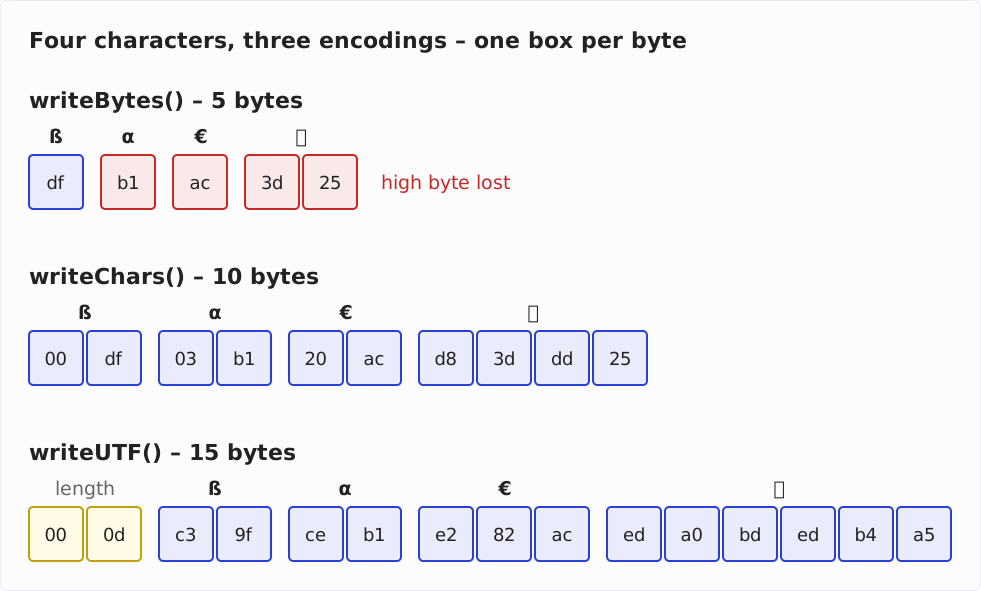
The following subsections explain the contents of the file.
Writing Strings with DataOutputStream.writeBytes()
writeBytes() has written the following bytes to the file (in the first line you see the hexadecimal encoding of the bytes, in the second line the respective written character):
48 65 6c 6c 6f 20 57 6f 72 6c 64 20 e4 f6 fc 20 df 20 b1 20 ac 20 96 20 3d 25
H  e  l  l  o     W  o  r  l  d     ä  ö  ü     ß     α     €     ↖     🔥
writeBytes() has written one byte for each character. Now we also see what happened to the special characters: The α character, for example, has the code U+03B1, of which only the lower byte 0xB1 was written to the file. In ISO-8859-1, 0xB1 stands for the character “±”, which we also see above. The € character has the code U+20AC, of which only 0xAC appears in the file, which in ISO-8859-1 stands for “¬”. The arrow has the code U+2196, whose low byte 0x96 is a non-printable control character in ISO-8859-1 – shown as ␡ above.
You should, therefore, not use the method writeBytes() anywhere in your code. That is unless you are 100% sure that your text only contains characters that can be encoded by ISO-8859-1.
The fire symbol is still interesting: It is written to the file as 0x3D 0x25 – that’s two bytes. How can this be, when writeBytes() writes only one byte for each character?
The answer is: In Java, the fire symbol is not one character, but two! The following is not allowed:
char c = '🔥';IntelliJ reports “Too many characters in character literal”; javac, since Java 25, “character literal contains more than one UTF-16 code unit”.
We can use the following code to examine this:
public class TestDataOutputStream7 {
  public static void main(String[] args) throws IOException {
    String fire = "🔥";
    System.out.println("fire = " + fire);
    System.out.println("fire.length() = " + fire.length());

    char c0 = fire.charAt(0);
    char c1 = fire.charAt(1);
    System.out.println("fire.charAt(0) = " + c0 +
          " (hex: " + Integer.toHexString(c0) + ")");
    System.out.println("fire.charAt(1) = " + c1 +
          " (hex: " + Integer.toHexString(c1) + ")");
  }
}
Here’s what we’re going to see:
fire = 🔥
fire.length() = 2
fire.charAt(0) = ? (hex: d83d)
fire.charAt(1) = ? (hex: dd25)
So the fire symbol consists of two char values with the codes U+D83D and U+DD25. These codes are not independent characters, but so-called “surrogates”, which are used to represent Unicode symbols with a code greater than U+FFFF, i.e., those that cannot be represented with two bytes.
Writing Strings with DataOutputStream.writeChars()
The method writeChars() has written the following bytes to the file:
00 48 00 65 00 6c 00 6c 00 6f 00 20 00 57 00 6f 00 72 00 6c 00 64 00 20
H     e     l     l     o           W     o     r     l     d

00 e4 00 f6 00 fc 00 20 00 df 00 20 03 b1 00 20 20 ac 00 20 21 96 00 20 d8 3d dd 25
ä     ö     ü           ß           α           €           ↖           🔥
Here we see two bytes for each character – the respective UTF-16 big-endian encoding. The fire symbol is written as two times two bytes – just as I’ve explained in the previous section.
Writing Strings with DataOutputStream.writeUTF()
By using writeUTF(), we wrote the following bytes to the file:
00 27 48 65 6c 6c 6f 20 57 6f 72 6c 64 20
      H  e  l  l  o     W  o  r  l  d

c3 a4 c3 b6 c3 bc 20 c3 9f 20 ce b1 20 e2 82 ac 20 e2 86 96 20 ed a0 bd ed b4 a5
ä     ö     ü        ß        α        €           ↖           🔥
The first thing you notice here is that the text is preceded by two bytes 0x00 0x27. This is the length of the encoded data as an unsigned 16-bit value: 0x27 is decimal 39 – that many bytes follow the first two. This implies a limit: a string whose encoded form takes more than 65,535 bytes cannot be written with writeUTF() – the method throws a UTFDataFormatException.
At the fire symbol, we see the modified UTF-8 encoding mentioned before. According to the Unicode table at compart.com, its actual UTF-8 encoding would be 0xF0 0x9F 0x94 0xA5. Java is doing its own thing at this point.
Reading Strings with DataInputStream
Now how can we read our Strings back? For the Strings written with writeBytes() and writeChars(), there are no corresponding read methods. Besides, if we want to use these methods, we would have to write the length of the String into the file first – otherwise, we wouldn’t know where it ends. Here is the code adapted for this purpose:
public class TestDataOutputStream8 {
  static final String STRING = "Hello World äöü ß α € ↖ 🔥";

  public static void main(String[] args) throws IOException {
    try (var out = new DataOutputStream(new BufferedOutputStream(
          new FileOutputStream("test8.bin")))) {
      out.writeInt(STRING.length());
      out.writeBytes(STRING);

      out.writeInt(STRING.length());
      out.writeChars(STRING);

      out.writeUTF(STRING);
    }
  }
}
We would then have to read the length, followed by the appropriate number of bytes using readFully(), and construct a String from them while specifying the correct character encoding. readFully() instead of read(), because read() is allowed by contract to return fewer bytes than requested; readFully() reads until the array is full:
public class TestDataInputStream8 {
  public static void main(String[] args) throws IOException {
    try (var in = new DataInputStream(new BufferedInputStream(
          new FileInputStream("test8.bin")))) {
      // read String written by writeBytes()
      int len = in.readInt();
      byte[] bytes = new byte[len];
      in.readFully(bytes);
      String s = new String(bytes, StandardCharsets.ISO_8859_1);
      System.out.println(s);

      // read String written by writeChars()
      len = in.readInt();
      bytes = new byte[len * 2];
      in.readFully(bytes);
      s = new String(bytes, StandardCharsets.UTF_16BE);
      System.out.println(s);

      // read String written by writeUTF()
      s = in.readUTF();
      System.out.println(s);
    }
  }
}
Here’s the output:
Hello World äöü ß ± ¬ =%
Hello World äöü ß α € ↖ 🔥
Hello World äöü ß α € ↖ 🔥Reading the Strings written with writeBytes() and writeChars() is quite complicated. Besides, writeBytes() cannot encode all characters, as stated before, and writeChars() takes up almost twice as much space as writeUTF() for most texts in Latin script.
So my clear recommendation for Strings is to use only writeUTF() and readUTF().
Writing Java objects to and reading them from files
You don’t write entire Java objects with DataOutputStream, but with ObjectOutputStream, and you read them back with ObjectInputStream. By the way, ObjectOutputStream also implements the DataOutput interface, so you can call the methods from this article on it as well.
The next part of this series, Serialization in Java, shows how serialization works and what pitfalls it has – from transient fields that are null after reading to the serialVersionUID and deserialization attacks.
Summary and outlook
In this article, you have seen how to use DataOutputStream and DataInputStream to write primitive data types and Strings to and read them from files.
In the next part, Serialization in Java, you will write and read entire Java objects with ObjectOutputStream and ObjectInputStream.
After that, I will introduce you to the FileChannel and ByteBuffer classes added in Java 1.4. These speed up working with huge files (when used with direct buffers), allow setting locks on file sections, and mapping files into memory (“memory-mapped files”) to access them as easily as byte arrays.
Did this article save you time? Then I’d be happy if you invested a minute of it in a review on my ProvenExpert profile. Your feedback shows me that the work on these articles pays off.