After the first part of the series was about reading files in Java, this second part introduces the corresponding methods for writing small and large files.
The article addresses the following questions in detail:
- What is the easiest way to write a string or a list of strings to a text file?
- How to write a byte array to a binary file?
- How to append data to an existing file?
- When processing large amounts of data, how do you write the data directly to files (without first having to build up the complete contents of the file in memory)?
- When to use
FileWriter,FileOutputStream,OutputStreamWriter,BufferedOutputStreamandBufferedWriter? - When to use
Files.newOutputStream()andFiles.newBufferedWriter()?
I already mentioned the topic of operating system independence in the first part, i.e., what to consider regarding character encodings, line breaks, and path names.
What is the easiest way to write to a file in Java?
Up to and including Java 6, there was no easy way to write files. You had to open a FileOutputStream or a FileWriter, if necessary, wrap it with a BufferedOutputStream or BufferedWriter, write into it, and finally – also in case of an error – close all streams again.
In Java 7, the utility class java.nio.file.Files was added with the “NIO.2 File API” (NIO stands for New I/O). This class contains methods to write a byte array or a list of strings – and, since Java 11, a single string – to a file with a single command.
Writing a byte array to a binary file
You can write a byte array to a file with the following command:
String fileName = ...;
byte[] bytes = ...;
Files.write(Path.of(fileName), bytes);
The method expects a Path object as the first parameter. It describes a file or directory name and provides utility methods for constructing such names. In the example, the static Path.of() method – available since Java 11 – is used to create a Path object from a file name.
If the file already exists, Files.write() overwrites it; if it does not exist, it is created. How to append to a file instead is shown further below.
Writing a string to a text file
It is just as easy to write a string to a file – but only since Java 11:
String fileName = ...;
String text = ...;
Files.writeString(Path.of(fileName), text);
Writing a list of strings to a text file
Often you don’t write a single string into a text file, but several strings as lines. With the following command, you can write a string list (or more precisely: an Iterable<? extends CharSequence>) into a text file:
String fileName = ...;
List<String> lines = ...;
Files.write(Path.of(fileName), lines);
After each line, the method writes the operating system’s line separator. The variant shown, without a character encoding, exists since Java 8; Java 7 only had the variant with a Charset parameter, which I come to in the chapter “Character encoding”.
Appending to an existing file
All three Files methods overwrite an existing file. To write to its end instead, pass the option StandardOpenOption.APPEND – together with CREATE, so that the file is created if it does not exist yet:
Files.write(Path.of(fileName), lines,
    StandardOpenOption.CREATE, StandardOpenOption.APPEND);
Files.writeString(Path.of(fileName), text,
    StandardOpenOption.CREATE, StandardOpenOption.APPEND);
With APPEND alone, Files.write() would throw a NoSuchFileException for a missing file. Files.newOutputStream() and Files.newBufferedWriter(), which you will get to know further below, accept the same options.
The classic classes have a constructor parameter for this: new FileWriter(fileName, true) and new FileOutputStream(fileName, true) append to the file instead of overwriting it.
Writing a string stream to a text file
There is no one-to-one equivalent of the stream-generating method Files.lines(), that is, no method that writes directly from a string stream to a file. However, with a small workaround, it is still possible:
String fileName = ...;
Stream<String> lines = ...;
Files.write(Path.of(fileName), (Iterable<String>) lines::iterator);
What are we doing here? The Files.write() method used here is the same as in the previous example, that is, the one that accepts an Iterable<String>. A Java 8 stream itself is not an Iterable since you cannot iterate over it multiple times, but only once. Therefore you cannot pass the stream itself as a parameter.
However, Iterable has only a single abstract method, iterator(), which makes it a functional interface – even without the @FunctionalInterface annotation. Therefore we can pass a method reference to lines.iterator() (which also returns an iterator) as Iterable. This works because Files.write() calls the referenced iterator() method only once. If the iterator() method were called a second time, the stream would acknowledge this with an IllegalStateException with the message “stream has already been operated upon or closed.”
Writing files with java.nio.file.Files – Summary
In this chapter, you got to know the utility methods of the java.nio.file.Files class. These methods are suitable for all use cases where the data you want to write to a file is completely stored in memory. They are fast, too: Files.write() writes 100 MB from a byte array in 26 ms on my system.
However, if the data is generated incrementally, you should also write it to a file incrementally. You should not first “collect” all the bytes in memory and then write them to a file in one go using one of the methods shown above. Unless the amount of data is only a few kilobytes – then that is fine.
In such a case, you’d better work (directly or indirectly) with a FileOutputStream. The following chapter explains how to do that.
How to write data to a file without having to collect its entire content in memory first?
To progressively write data to a file, use a FileOutputStream (or related classes). These were available before Java 7 and made writing small files unnecessarily complicated. In the following sections, I present various options.
Writing individual bytes with FileOutputStream
The primary class is FileOutputStream. It writes data byte by byte into a file. The following example shows how bytes returned by the imaginary process() method are successively written to a file (until the method returns -1):
String fileName = ...;
try (FileOutputStream out = new FileOutputStream(fileName)) {
  int b;
  while ((b = process()) != -1) {
    out.write(b);
  }
}
Writing individual bytes is expensive, because every call to write() triggers a system call. Writing 100,000,000 bytes to a test file this way takes 150 seconds on my system. That is only 0.67 MB per second.
Writing byte arrays with FileOutputStream
Using FileOutputStream, you can also write byte arrays. In the following example, the process() method returns byte arrays instead of individual bytes (and null if no more data is available):
String fileName = ...;
try (FileOutputStream out = new FileOutputStream(fileName)) {
  byte[] bytes;
  while ((bytes = process()) != null) {
    out.write(bytes);
  }
}
This method is several times faster. If you write 10 bytes 10,000,000 times (the same amount in total as in the previous section), you only need 14.9 seconds (instead of 150 seconds). If you write 100 bytes 1,000,000 times, it’s only 1.5 seconds.
What is relevant here is primarily the number of write operations, not the actual amount of data: every call to write() costs one system call, no matter whether it passes one byte or a hundred. Naturally, this only applies up to a specific block size. Writing ten gigabytes at a time is no faster than writing ten times one gigabyte. The optimal value depends on the hardware and the operating system.
The following chart shows how fast FileOutputStream writes on my system when it receives 1 byte, 2 bytes, 4 bytes, and so on up to 16 MB per write() call – each time for the same 100 million bytes:
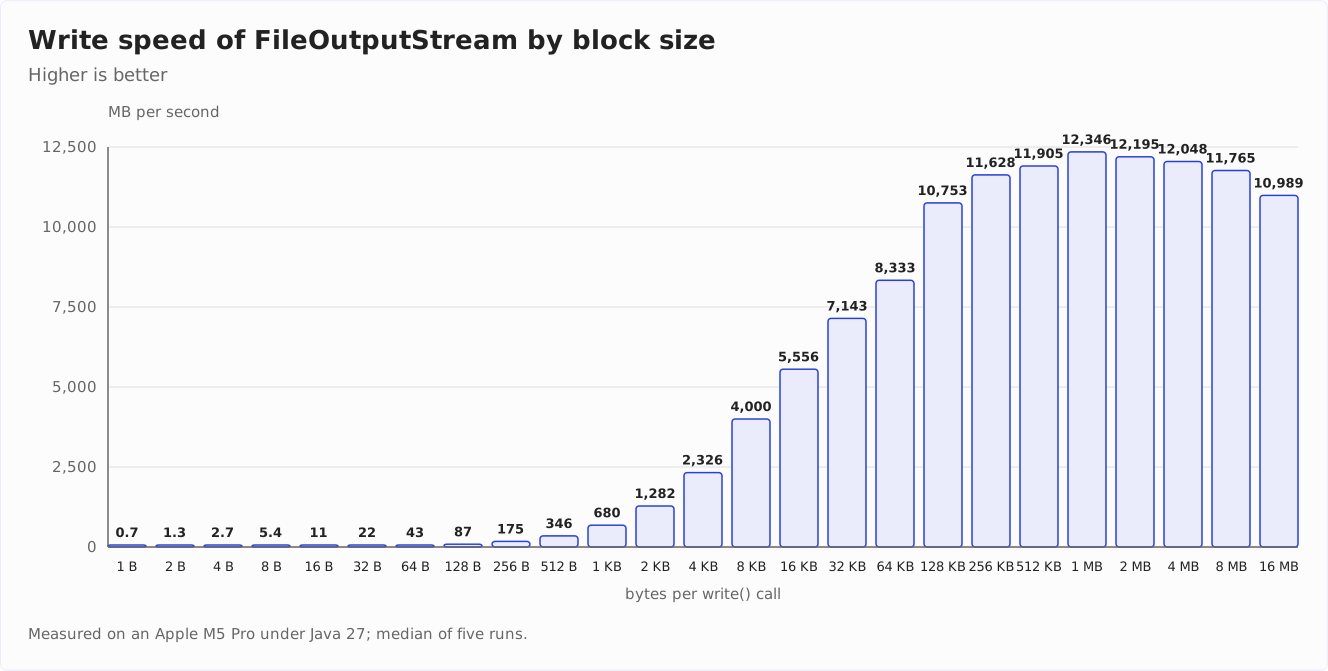
Every doubling of the block size halves the number of system calls – and up to 8 KB, the time almost halves with it: from about 150 seconds for 1 byte per call to 25 ms for 8 KB.
Beyond that, the gain shrinks with every step: 64 KB take 12 ms, 256 KB 8.6 ms. From there on, hardly anything changes. My system is fastest with 1 MB per call (8.1 ms, which is 12,346 MB per second); at 16 MB, it is back at 9.1 ms.
The 8 KB that Java uses for its buffers sit exactly at this threshold: up to there, every doubling pays off almost in full; beyond it, the memory per stream grows faster than the gain. Instead of 100 million, there are only 12,208 system calls left with 8 KB. You will see how BufferedOutputStream uses this buffer two sections further down.
Writing binary data with the NIO.2 OutputStream
In Java 7, Files.newOutputStream() was added as another method to create an OutputStream:
String fileName = ...;
try (OutputStream out = Files.newOutputStream(Path.of(fileName))) {
  int b;
  while ((b = process()) != -1) {
    out.write(b);
  }
}
This method returns a ChannelOutputStream instead of a FileOutputStream, because NIO.2 works with so-called channels under the hood. Writing does not get faster this way: in my measurements, this variant takes 149 seconds for the 100 million individual bytes, FileOutputStream 150 seconds; with 100-byte blocks, both are at 1.5 seconds.
Write faster with BufferedOutputStream
We have previously observed that writing blocks is much faster than writing individual bytes. BufferedOutputStream takes advantage of this fact by first collecting the bytes to be written in a buffer and writing them to the file only when the buffer has reached a certain size. By default, this buffer is 8 KB in size (in virtual threads, since Java 19, it starts at 512 bytes and grows up to 8 KB as needed).
String fileName = ...;
try (FileOutputStream out = new FileOutputStream(fileName);
     BufferedOutputStream bout = new BufferedOutputStream(out)) {
  int b;
  while ((b = process()) != -1) {
    bout.write(b);
  }
}
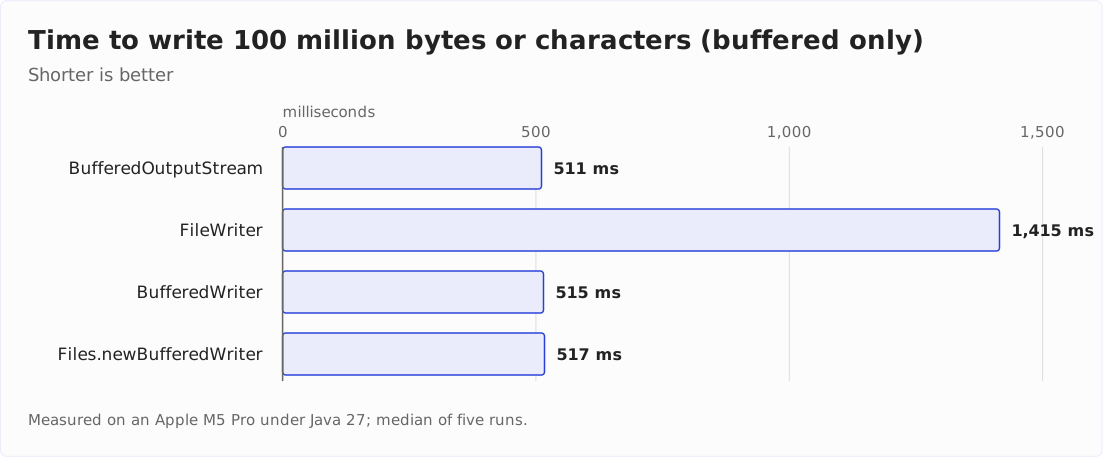
Using BufferedOutputStream, my system needs 511 ms to write 100,000,000 individual bytes. That is 196 MB per second – instead of 0.67 MB per second without a buffer. The 4,000 MB per second that the 8 KB block reached in the chart further up are still far out of reach: every byte gets into the buffer through its own – synchronized – write() call, and these 100 million method calls cost more time than the 12,208 system calls that empty the buffer.
Writing byte arrays with BufferedOutputStream
Just like FileOutputStream, BufferedOutputStream can write not only individual bytes but also byte blocks:
String fileName = ...;
try (FileOutputStream out = new FileOutputStream(fileName);
     BufferedOutputStream bout = new BufferedOutputStream(out)) {
  byte[] bytes;
  while ((bytes = process()) != null) {
    bout.write(bytes);
  }
}
This method combines the advantages of writing byte arrays with those of a buffer: the buffer collects small arrays and passes large ones straight through. With 100-byte blocks, it takes 35 ms for the 100 million bytes on my system (instead of 511 ms for individual bytes). For writing binary data, I recommend always using this method.
Writing text files with FileWriter
For writing text to a file, it must be converted to binary data. Character-to-byte conversion is the OutputStreamWriter’s responsibility. You wrap it around the FileOutputStream as follows. The process() method in the following example produces individual characters.
String fileName = ...;
try (FileOutputStream out = new FileOutputStream(fileName);
     OutputStreamWriter writer = new OutputStreamWriter(out)) {
  int c;
  while ((c = process()) != -1) {
    writer.write(c);
  }
}
FileWriter is more convenient. It combines FileOutputStream and OutputStreamWriter. The following code is equivalent to the previous one:
String fileName = ...;
try (FileWriter writer = new FileWriter(fileName)) {
  int c;
  while ((c = process()) != -1) {
    writer.write(c);
  }
}
OutputStreamWriter uses an internal buffer for the encoded bytes that grows up to 8 KB (since Java 19, it starts at 512 bytes and grows as needed). Writing 100,000,000 characters to a text file takes 1.4 seconds with both variants.
Write text files faster with BufferedWriter
You can accelerate writing even further with BufferedWriter:
String fileName = ...;
try (FileWriter writer = new FileWriter(fileName);
     BufferedWriter bufferedWriter = new BufferedWriter(writer)) {
  int c;
  while ((c = process()) != -1) {
    bufferedWriter.write(c);
  }
}
BufferedWriter adds another 8 KB buffer – this time for characters. This second buffer reduces the writing time for 100,000,000 characters from 1.4 seconds to 515 ms.
Why does a second buffer make writing almost three times as fast? Without it, FileWriter passes every character to the encoder individually: for each write() call, it creates an array with one element, wraps it in a CharBuffer, and calls the encoder for this single character.
BufferedWriter, on the other hand, only stores the character in its array and hands the encoder the full buffer: 8,192 characters in one call, which the encoder processes in a loop.
Write text files faster with the NIO.2 BufferedWriter
In Java 7, the method Files.newBufferedWriter() was added to create a BufferedWriter; the variant shown, without a Charset parameter, exists since Java 8:
String fileName = ...;
try (BufferedWriter bufferedWriter = Files.newBufferedWriter(Path.of(fileName))) {
  int c;
  while ((c = process()) != -1) {
    bufferedWriter.write(c);
  }
}
The BufferedWriter created this way is, at 517 ms, in the same range as the “classically” created one at 515 ms.
Performance overview: writing files
The following chart shows all six methods presented once more and the time each of them needs to write 100,000,000 bytes or characters one by one to a file:
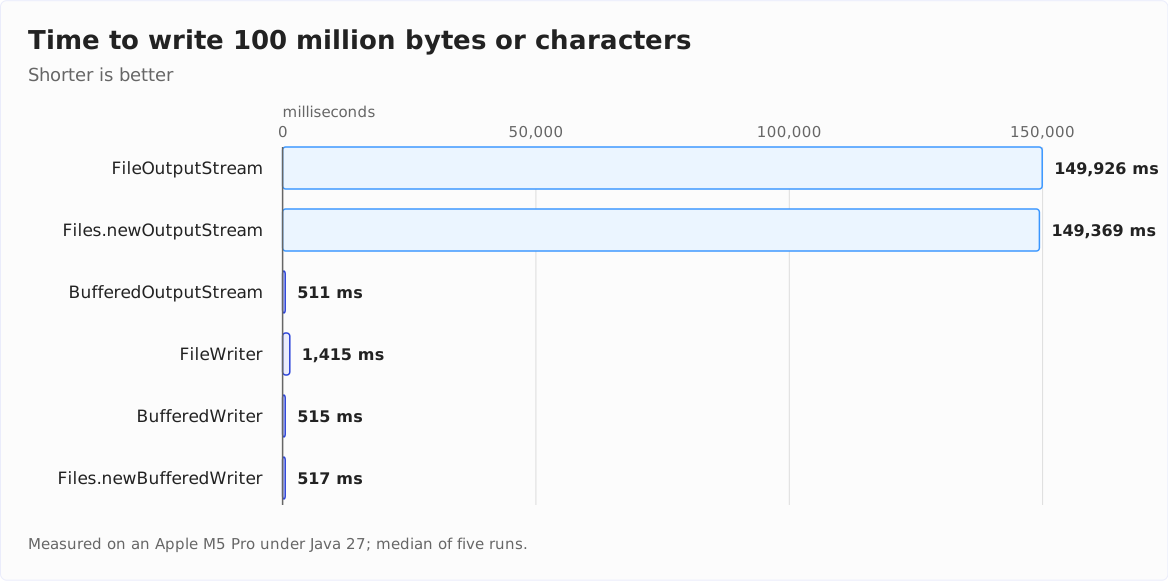
The gap to the unbuffered methods is so large that the bars of the four buffered methods are hardly visible above. So here is a second chart that shows only the buffered methods:
Which method should you use?
The decision depends on two questions: Is the data complete in memory, or does it arrive piece by piece? And is it binary data or text? The following matrix shows, for each of the four combinations, the method I recommend:
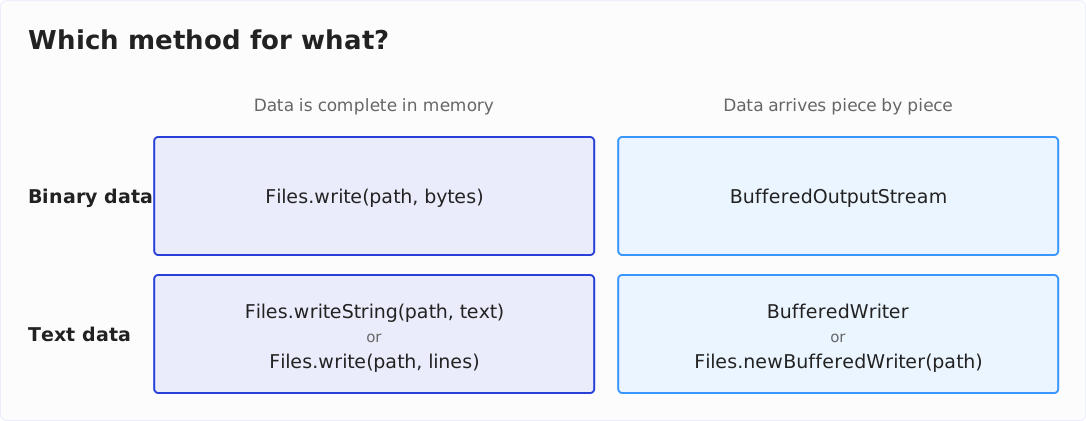
You only need the unbuffered FileOutputStream and the FileWriter without a BufferedWriter if you write large blocks anyway – or as the foundation of the buffered variants.
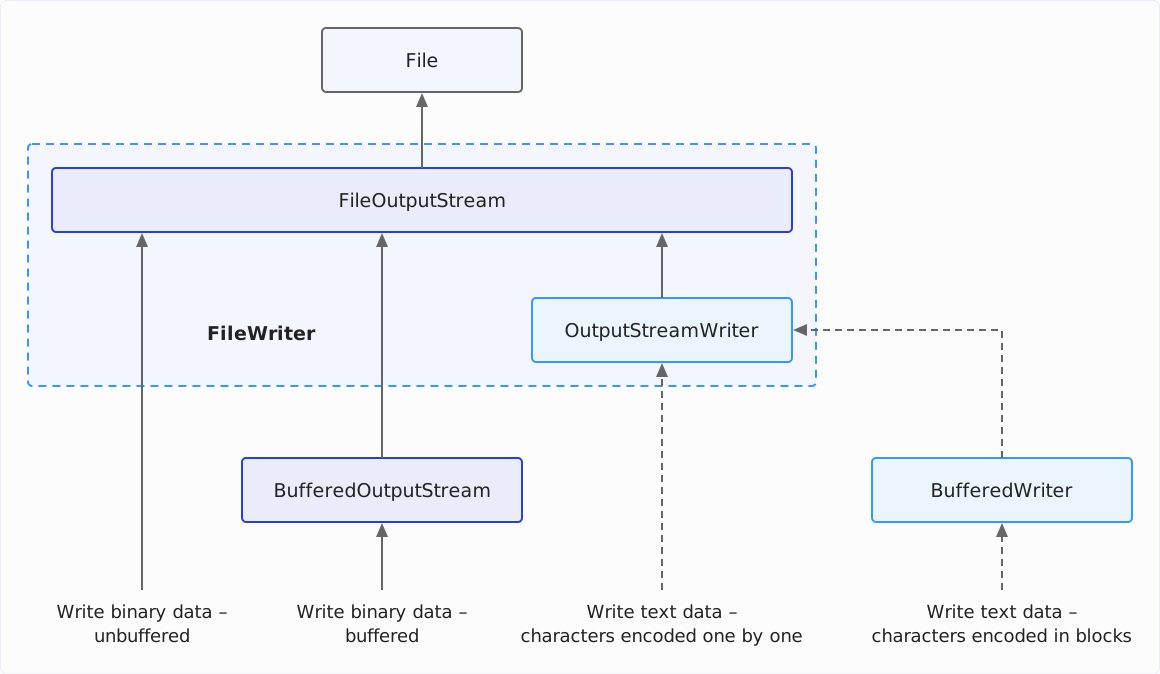
Overview FileOutputStream, FileWriter, OutputStreamWriter, BufferedOutputStream, BufferedWriter
The following diagram shows how the java.io classes presented in this article for writing binary and text files relate to each other. Solid arrows represent binary data; dashed arrows represent text data:
Character encoding
The subject of character encoding and the problems that go with it have been discussed in detail in the previous article.
Therefore, I’ve limited the following sections to those aspects that are relevant for writing text files with Java.
What character encoding does Java use by default to write text files?
If you do not specify a character encoding when writing a text file, Java uses a default encoding. Which one that is changed with Java 18.
Since Java 18, the answer is simple: it is always UTF-8. JEP 400 made UTF-8 the default encoding of all standard APIs – regardless of operating system, locale, and configuration.
Up to Java 17, the answer depended on the method:
FileWriterandOutputStreamWriterusedCharset.defaultCharset()when no encoding was specified. The JVM derived this encoding from the operating system and the locale: usually Windows-1252 on a German Windows, mostly UTF-8 on Linux and macOS. So the same code wrote a different file depending on the machine.Files.writeString(),Files.write()andFiles.newBufferedWriter(), on the other hand, have always used UTF-8.
Exactly this inconsistency was the reason for JEP 400. It is also the reason why you should take a close look when upgrading to Java 18 or newer: if your program writes files through a FileWriter that another program reads as Windows-1252, that matched on a German Windows up to Java 17 – and breaks since Java 18. For such cases, the system property -Dfile.encoding=COMPAT brings back the old behavior.
What does this mean for your code? If it runs on Java 18 or newer, you no longer need to specify the encoding to write UTF-8 files. A StandardCharsets.UTF_8 behind every call is then just noise and says nothing that does not hold anyway. You have to specify the encoding in two cases: if your code also has to run on Java 17 or older – or if the file is not supposed to be UTF-8, for example because an old program expects it in a different encoding.
UTF-8 is the right choice for everything you create new: according to W3Techs, more than 99% of all websites use this encoding.
How to specify the character encoding when writing a text file?
For the two cases mentioned, you will find below an example for all methods discussed so far with the character encoding specified explicitly – here UTF-8:
Files.writeString(path, string, StandardCharsets.UTF_8)Files.write(path, lines, StandardCharsets.UTF_8)new FileWriter(file, StandardCharsets.UTF_8)// only since Java 11new OutputStreamWriter(outputStream, StandardCharsets.UTF_8)Files.newBufferedWriter(path, StandardCharsets.UTF_8)
Summary and outlook
This article has shown different methods for writing byte arrays and strings to binary and text files in Java. My recommendation in three sentences:
- If the data is complete in memory, use
Files.write()orFiles.writeString()– one line, done. - If the data arrives piece by piece, write it through a
BufferedOutputStreamor aBufferedWriter: unbuffered, writing individual bytes takes 293 times as long as buffered on my system. - The character encoding needs to be specified since Java 18 only if the file is not supposed to be UTF-8 or if your code also has to run on Java 17 and older.
In the third part of the series, you will learn how to use the classes File, Path and Paths to construct file and directory paths.
In future articles of this series, I will show:
- How to read entire directories
- How to copy, move and delete files, and how to set links
- How to create temporary files
- How to use
DataOutputStreamandDataInputStreamto write and read structured data - How to write and read entire Java objects with
ObjectOutputStreamandObjectInputStream
In the further course of the series, more advanced topics will be covered:
- The NIO channels and buffers introduced in Java 1.4 to speed up working with large files in particular.
- Memory-mapped I/O for ultra-fast file access without streams.
- File locking to access the same files from multiple threads or processes in parallel without conflict.
Did this article answer your questions? Then I’d be happy about a review on my ProvenExpert profile – it helps other developers find this content.