In this article, I will show you, with an example, how Java’s ByteBuffer works and what the methods flip() and compact() do precisely.
The article answers the following questions:
- What is a
ByteBuffer, and what do you need it for? - How to create a
ByteBuffer? - What do the values
position,limit, andcapacitymean? - How to write into the
ByteBuffer, how to read from it? - What exactly do the methods
flip()andcompact()do? - When do you use
clear()instead ofcompact(), and what doesrewind()do?
Let’s go!
What Is a ByteBuffer, and What Do We Need It For?
You need a ByteBuffer to write data to or read data from a file, a socket, or another I/O component using a so-called “Channel”.
This article is mainly about ByteBuffer itself. To learn how to write and read files with ByteBuffer and FileChannel, see the “FileChannel” article in the “Files” tutorial.
A ByteBuffer is a wrapper around a byte array or around a memory area outside the heap and provides methods for convenient writing and reading. The ByteBuffer internally stores the read/write position and a so-called “limit”.
You will learn what this means in the following example – step by step.
You can find the code written for this article in this GitHub Repository.
How to Create a ByteBuffer
First, you must create a ByteBuffer with a given size (“capacity”). There are two methods for this:
ByteBuffer.allocate(int capacity)ByteBuffer.allocateDirect(int capacity)
The capacity parameter specifies the size of the buffer in bytes.
The allocate() method creates the buffer in the Java heap memory, where the garbage collector will remove it after use.
allocateDirect(), on the other hand, creates the buffer in native memory, i.e., outside the heap. Native memory has the advantage that read and write operations are executed faster. The reason is that the corresponding operating system operations can access this memory area directly, and data does not have to be exchanged between the Java heap and the operating system first. The disadvantage of this method is higher allocation and deallocation costs.
We create a ByteBuffer with a size of 1,000 bytes as follows:
var buffer = ByteBuffer.allocate(1000);Then we have a look at the buffer’s metrics – position, limit, and capacity.
Since we will repeatedly print these metrics throughout the example, we create a printMetrics() method for them:
private static void printMetrics(ByteBuffer buffer) {
  System.out.printf("position = %4d, limit = %4d, capacity = %4d%n",
      buffer.position(), buffer.limit(), buffer.capacity());
}
After creating the ByteBuffer, we see the following output:
position = 0, limit = 1000, capacity = 1000Here is a graphical representation so that you can better imagine the buffer. The area with the gray border is empty and can subsequently be filled.

ByteBuffer Position, Limit, and Capacity
The printed metrics mean:
positionis the read/write position. It is always 0 for a new buffer.limithas two meanings: When we write to the buffer,limitindicates the position up to which we can write. When we read from the buffer,limitindicates up to which position the buffer contains data. For a newByteBuffer,limitis equal tocapacity– we can fill the empty buffer up to the end.capacityindicates the size of the buffer. Its value of 1,000 corresponds to the 1,000 that we passed to theallocate()method. It will not change during the lifetime of the buffer.
In the following, I call writing to the buffer and reading from it “write mode” and “read mode”. The ByteBuffer itself has no mode – it does not store whether we are currently writing or reading. That is why we have to switch ourselves: with flip() and compact().
The ByteBuffer Read-Write Cycle
A complete read-write cycle consists of the steps put(), flip(), get() and compact(): With put(), we write to the buffer, flip() switches to read mode, with get(), we read, and compact() switches back to write mode.

We will look at these steps in the following sections.
Writing to the ByteBuffer Using put()
For writing into the ByteBuffer, there are several put() methods to write single bytes, a byte array, or other primitive types (like char, double, float, int, long, short) into the buffer.
The ByteBuffer writes values that consist of several bytes – such as int and long – in big-endian byte order, i.e., with the most significant byte first. You can change the order with buffer.order(ByteOrder.LITTLE_ENDIAN).
These put() methods write at the current position and advance position. There are also variants that take the index as a parameter and leave position unchanged – since Java 13, also for byte arrays.
In our example, we write the value 1 into the buffer 100 times, and then we look at the buffer metrics again:
for (int i = 0; i < 100; i++) {
  buffer.put((byte) 1);
}

printMetrics(buffer);
After running the program, we see the following output:
position = 100, limit = 1000, capacity = 1000The position has moved 100 bytes to the right; the buffer now looks as follows:

Next, we write a two into the buffer 200 times. We use a different method this time: We first fill a byte array and copy it into the buffer. Finally, we print the metrics again:
byte[] twos = new byte[200];
Arrays.fill(twos, (byte) 2);
buffer.put(twos);

printMetrics(buffer);
Now we see:
position = 300, limit = 1000, capacity = 1000The position has shifted another 200 bytes to the right; the buffer looks like this:

Switching to Read Mode with ByteBuffer.flip()
For reading from the buffer, there are corresponding get() methods.
We want to read the buffer from the beginning. Since position indicates not only the write position but also the read position, we must set position back to 0 for this.
At the same time, we set limit to 300 to indicate that one can read a maximum of 300 bytes from the buffer.
In the program code, we do this as follows:
buffer.limit(buffer.position());
buffer.position(0);
Since these two lines are needed every time you switch from write to read mode, there is a ByteBuffer method that does the same for us:
buffer.flip();Invoking printMetrics() now shows the following values:
position = 0, limit = 300, capacity = 1000position has returned to the beginning of the buffer, and limit points to the end of the filled area:

With this, the buffer is ready to be read.
Reading from the ByteBuffer with get()
Let’s assume that we want to write the buffer’s content to a channel, and the channel can currently only take 200 of the 300 bytes. We can simulate this by passing a 200-byte array to the ByteBuffer.get() method, into which the buffer writes its data:
buffer.get(new byte[200]);printMetrics() now displays the following:
position = 200, limit = 300, capacity = 1000The read position has shifted to the right by 200 bytes – i.e., to the end of the data already read, which is equal to the beginning of the data that is not yet read:

Switching to Write Mode – How Not to Do It
To write back to the buffer now, you could make the following mistake: You set position to the end of the data, i.e., 300, and limit back to 1,000, which brings us back to precisely the state we were in after writing the ones and twos:
Let’s assume that we now write 300 more bytes into the buffer. The buffer would then look like this:

If we now used flip() to switch back to read mode, position would be back at 0:

However, we would then read the first 200 bytes a second time, although we have already read them.
This approach is, therefore, wrong. The following section explains how to do it correctly.
Switching to Write Mode with ByteBuffer.compact()
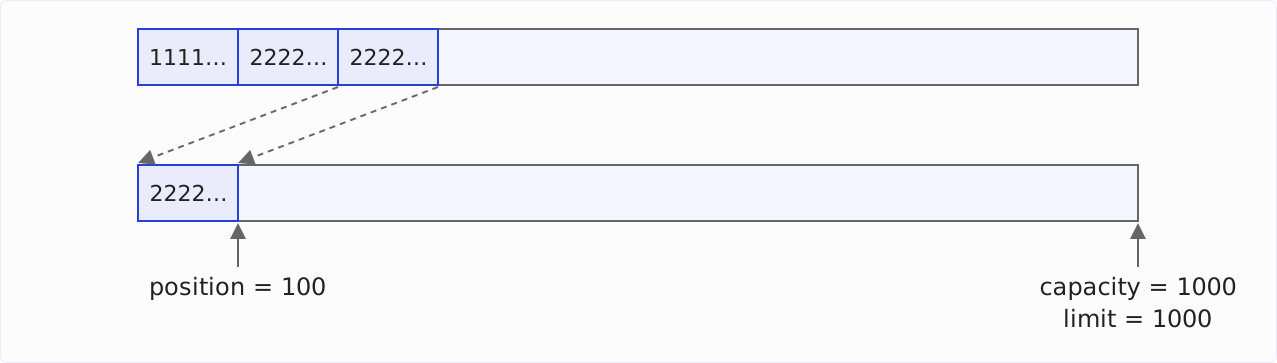
As a reminder, this is what the buffer looks like after we have read 200 of the 300 bytes:
The correct way to switch to write mode is as follows:
- We calculate the number of bytes not yet read:
remaining = limit - position. In the example, this results in 100. - We move the bytes not yet read to the beginning of the buffer.
- We set the write position to the end of the bytes shifted left. That’s 100 in the example.
- We set
limitto the end of the buffer.
ByteBuffer also provides a convenience method for this:
buffer.compact();After invoking compact(), printMetrics() prints the following:
position = 100, limit = 1000, capacity = 1000In the graphic, the compact() process looks like this:
The Next Cycle
Now we can write the next 300 bytes into the buffer:
byte[] threes = new byte[300];
Arrays.fill(threes, (byte) 3);
buffer.put(threes);
printMetrics() then displays the following values:
position = 400, limit = 1000, capacity = 1000After writing the threes, position has shifted to the right by 300 bytes:

Now we switch back to read mode using flip():
buffer.flip();A final call to printMetrics() prints the following values:
position = 0, limit = 400, capacity = 1000The reading position is at the beginning of the buffer, where compact() moved the 100 twos not yet read. So we can now continue reading at precisely the position where we stopped before.

More ByteBuffer Methods: clear(), remaining(), rewind()
Besides flip() and compact(), you will often come across clear(), remaining(), hasRemaining(), and rewind() in the read-write cycle.
ByteBuffer.clear() or compact()?
compact() copies the bytes not yet read to the beginning of the buffer. If you have read the buffer completely, there is nothing to copy. Then you can call clear() instead of compact():
buffer.clear();clear() sets position to 0 and limit to capacity. The method does not erase the data in the buffer – the next write operation overwrites it.
If there are still unread bytes in the buffer when you call clear(), the next write operation overwrites those as well. In our example, these would have been the 100 twos that were still in the buffer after the get() call.
I recommend compact() whenever bytes can be left over after reading, e.g., after channel.write(buffer). clear() fits when you know for sure that the buffer has been read completely.
ByteBuffer.remaining() and hasRemaining()
remaining() returns the number of bytes between position and limit – in read mode, these are the bytes not yet read. hasRemaining() returns true as long as this number is greater than 0.
With hasRemaining(), you make sure that a channel writes the entire buffer, because channel.write(buffer) does not write all bytes in every case:
while (buffer.hasRemaining()) {
  channel.write(buffer);
}
You can find a complete example in the FileChannel article in the section Writing to a file using ByteBuffer.flip() and compact().
ByteBuffer.rewind()
rewind() sets position back to 0 and leaves limit unchanged. After that, you can read the same data again.
rewind() differs from flip() only in the limit: flip() sets it to the previous position, rewind() leaves it where it is. If you call rewind() instead of flip() after writing, limit stays at capacity – and when reading, you also get the bytes behind the written data.
Summary
A ByteBuffer has a fixed size (capacity), a read/write position (position), and a limit up to which you can write or read.
The following table shows what flip(), compact(), clear(), and rewind() set position and limit to and what you use each method for:
| Method | position | limit | Use |
|---|---|---|---|
flip() | 0 | previous position | after writing, to read |
compact() | number of unread bytes | capacity | after reading, to continue writing – unread bytes are preserved |
clear() | 0 | capacity | after reading everything, to write again |
rewind() | 0 | unchanged | to read the same data again |
compact() is the only one of the four methods that copies data. The other three only change position and limit.
For switching back to write mode, I recommend compact(): no unread bytes are lost. And if the buffer has been read completely, there is nothing to copy – compact() then does the same as clear().
Did this article answer your questions? Then I’d be happy about a review on my ProvenExpert profile – it helps other developers find this content.