The previous six parts of this article series covered reading and writing files, directory and file path construction, directory and file operations, writing and reading structured data, and the serialization of Java objects.
In today’s part, I explain the NIO classes FileChannel and ByteBuffer introduced in Java 1.4 with JSR 51 (“New I/O APIs for the Java™ Platform”). Moreover, I show what possibilities they provide to read and write files and what their advantages are – compared to the methods discussed before.
In detail, you’ll learn:
- What are
FileChannels andByteBuffers, and what are their advantages? - How to write and read files with
FileChannelandByteBuffer? - What are memory-mapped files, and what are their advantages?
- How to map files beyond 2 GB into memory since Java 22?
- How to lock specific sections of a file?
- Which write method has the best performance?
You can find the code from this article in my GitHub Repository.
Terminology
What is a FileChannel?
A Channel is a communication link to a file, socket, or another component that provides I/O functionality. Unlike InputStream or OutputStream, a Channel is bidirectional, which means you can use it for both writing and reading.
A FileChannel is a Channel for connecting to a file.
What is a ByteBuffer?
A ByteBuffer is basically a byte array (on the Java heap or in native memory), combined with write and read methods. This encapsulation allows writing to or reading from the ByteBuffer without having to know the position of the written or read data within the underlying array.
You can learn how exactly a ByteBuffer works in the ByteBuffer main article.
File access with FileChannel + ByteBuffer
To write data into a FileChannel or read from it, you need a ByteBuffer.

Data is put into the ByteBuffer with put() and then written from the buffer to the file with FileChannel.write(buffer). FileChannel.write() calls get() on the buffer to retrieve the data.
Using FileChannel.read(buffer), data is read from the file. The read() method puts the data into the ByteBuffer with put(), and from there, you can retrieve it with get().
Advantages of FileChannel
FileChannel provides the following advantages over the FileInputStream and FileOutputStream classes introduced in the first two parts of the series:
- You can read and write at any position within the file.
- You can force the operating system to write changed data from the cache to the storage medium.
- You can map sections of a file to memory (“memory-mapped file”), which allows very efficient data access.
- You can set locks on file sections so that other processes cannot access them simultaneously.
- Data can be transferred directly from one channel to another (“transferTo”), without the detour through a
ByteBuffer.
Reading and writing files with FileChannel and ByteBuffer
In this chapter, I show you – using code examples – how to read and write data with FileChannel and ByteBuffer, how to access certain positions within the file, how to determine and change the file size, how to force writing from cache to storage media, and how to transfer data directly from one channel to another.
How to read a file using FileChannel?
Opening a FileChannel to read a file
To read a file, you must first open a FileChannel. The most direct way to do this is:
Path path = ...;
FileChannel channel = FileChannel.open(path, StandardOpenOption.READ);(You can read about how to construct a Path object in the third part of this series.)
Alternatively, you can create a FileChannel from a RandomAccessFile:
Path path = ...;
RandomAccessFile file = new RandomAccessFile(path.toFile(), "r");
FileChannel channel = file.getChannel();
... or from a FileInputStream:
Path path = ...;
FileInputStream in = new FileInputStream(path.toFile());
FileChannel channel = in.getChannel();
In this example, it makes no difference which variant you choose. In the end, the getChannel() methods create a new FileChannel using the file information stored in RandomAccessFile or FileInputStream. So, although you can only read data sequentially from a FileInputStream, this restriction does not apply to the FileChannel created from the FileInputStream.
However, the readable and writable flags are set accordingly:
- A
FileChannelcreated withFileInputStream.getChannel()can only be used for reading. - A
FileChannelcreated withRandomAccessFile.getChannel()can be used for reading and writing. - How you can use a
FileChannelcreated withFileChannel.open()is determined by the options passed in as the second parameter. Since we specifiedStandardOpenOption.READin the example above, only read access is allowed in this case. (You can find an overview of the available options in the JavaDoc of StandardOpenOption.)
Reading a file with FileChannel and ByteBuffer
Once you have opened a FileChannel, you can read from it into a ByteBuffer with FileChannel.read(). The following example reads blocks of 1,024 bytes each, outputs their respective lengths and their first and last bytes – until the end of the file is reached:
Path path = Path.of("read-demo.bin");
try (FileChannel channel = FileChannel.open(path,
        StandardOpenOption.READ)) {
  ByteBuffer buffer = ByteBuffer.allocate(1024);

  int bytesRead;
  while ((bytesRead = channel.read(buffer)) != -1) {
    System.out.printf("bytes read from file: %d%n", bytesRead);
    if (bytesRead > 0) {
      System.out.printf("  first byte: %d, last byte: %d%n",
              buffer.get(0), buffer.get(bytesRead - 1));
    }
    buffer.rewind();
  }
}
Using channel.read(buffer), we read as many bytes as possible from the file and put them into the buffer. With buffer.get(index), we read single bytes from the buffer without setting its read position before and without changing the read position in the process. Using buffer.rewind(), we set the buffer’s position to 0 at the end of the loop so that it can be filled again.
Reading a file with ByteBuffer.flip() and compact()
In the following second example, we proceed somewhat differently. We read all bytes of the buffer and sum them up. Instead of accessing the data with buffer.get(index), we first use buffer.flip() to set the read position to the beginning of the buffer and then buffer.get() to read single bytes from the current read position.
We do not read the entire buffer, but only a random number of bytes, and thus simulate that we cannot process the data completely. Then we switch back to buffer write mode with buffer.compact() and read more bytes from the FileChannel. For a better understanding, I recommend you read the article Java ByteBuffer Explained: position, limit, flip(), compact().
Path path = Path.of("read-demo.bin");
try (FileChannel channel = FileChannel.open(path,
        StandardOpenOption.READ)) {
  ByteBuffer buffer = ByteBuffer.allocate(1024);

  int bytesRead;
  while ((bytesRead = channel.read(buffer)) != -1) {
    System.out.printf("bytes read from file: %d%n", bytesRead);

    long sum = 0;

    buffer.flip();
    int numBytesToRead =
            ThreadLocalRandom.current().nextInt(buffer.remaining());
    for (int i = 0; i < numBytesToRead; i++) {
      sum += buffer.get();
    }

    System.out.printf("  bytes read from buffer: %d, sum of bytes: %d%n",
            numBytesToRead, sum);
    buffer.compact();
  }
}
In the output, we see that the first call to channel.read() reads 1,024 bytes from the file, and each subsequent call reads precisely as many bytes as we previously read from the buffer (and as much space has become free in the buffer accordingly).
The bytes still in the buffer after the last channel.read() are not processed by the demo. In real code, you would switch the buffer to read mode once more with flip() after the loop and drain it.
How to write a file with FileChannel?
Opening a FileChannel for writing to a file
To write a file, you must open a FileChannel first. This works just as with reading:
Path path = ...;
FileChannel channel = FileChannel.open(path,
    StandardOpenOption.CREATE, StandardOpenOption.WRITE);
Instead of StandardOpenOption.READ, we specify StandardOpenOption.WRITE. Additionally, in the example, I specify StandardOpenOption.CREATE so that the file is created if it does not exist.
Other OpenOptions relevant to write operation are:
StandardOpenOption.CREATE_NEW: The file is created if it does not already exist; otherwise, aFileAlreadyExistsExceptionis thrown.StandardOpenOption.APPEND: Data is appended to the file. Before each write, theFileChannelmoves its position to the end of the file – even if you have set it elsewhere withposition()before.StandardOpenOption.TRUNCATE_EXISTING: The file is completely cleared before writing. This option cannot be used together withAPPEND.
Similar to reading, you can also create a writable FileChannel using RandomAccessFile.getChannel() or FileOutputStream.getChannel().
Writing to a file using ByteBuffer.flip() and compact()
The following example writes a random number of bytes into the ByteBuffer ten times and then from there into the FileChannel:
Path path = Path.of("write-demo.bin");
try (FileChannel channel = FileChannel.open(path,
        StandardOpenOption.CREATE, StandardOpenOption.WRITE)) {

  ByteBuffer buffer = ByteBuffer.allocate(1024);

  for (int i = 0; i < 10; i++) {
    int bytesToWrite =
            ThreadLocalRandom.current().nextInt(buffer.capacity());
    for (int j = 0; j < bytesToWrite; j++) {
      buffer.put((byte) ThreadLocalRandom.current().nextInt(256));
    }

    buffer.flip();
    channel.write(buffer);
    buffer.compact();
  }

  // channel.write() doesn't guarantee all data to be written to the channel.
  // If there are remaining bytes in the buffer, write them now.
  buffer.flip();
  while (buffer.hasRemaining()) {
    channel.write(buffer);
  }
}
The buffer’s write position is initially set to 0. With buffer.put(), we fill the ByteBuffer up to a random position. With buffer.flip(), we switch to buffer read mode; with channel.write(buffer), we write the contents of the buffer to the file. And with buffer.compact(), we switch the buffer back to write mode.
Calling channel.write(buffer) does not guarantee that the entire contents of the buffer are written to the channel. Therefore, in the end, we have to call channel.write(buffer) until buffer.hasRemaining() returns false, i.e., the buffer does not contain any more data.
Once again, I recommend reading the article Java ByteBuffer Explained: position, limit, flip(), compact().
How to read or write data at a specific position
The read/write position within a channel can be read with FileChannel.position() and changed at any time with FileChannel.position(newPosition). In the following example, a file is written from back to front with the bytes 0xff to 0x00. Afterward, the content is read at ten random positions and displayed on the screen.
Path path = Path.of("position-demo.bin");
try (FileChannel channel = FileChannel.open(path,
        StandardOpenOption.CREATE, StandardOpenOption.WRITE,
        StandardOpenOption.READ)) {

  ByteBuffer buffer = ByteBuffer.allocate(1);

  // Write backwards
  for (int pos = 255; pos >= 0; pos--) {
    buffer.put((byte) pos);
    buffer.flip();
    channel.position(pos);
    while (buffer.remaining() > 0) {
      channel.write(buffer);
    }
    buffer.compact();
  }

  // Read from random positions
  for (int i = 0; i < 10; i++) {
    long pos = ThreadLocalRandom.current().nextLong(channel.size());
    channel.position(pos);
    channel.read(buffer);
    buffer.flip();
    byte b = buffer.get();
    System.out.printf("Byte at position %d: %d%n", pos, b);
    buffer.compact();
  }
}
In the section “Memory-mapped Files”, you will see how you can code this much more elegantly.
How to determine file size?
You can determine a file’s size as follows:
long fileSize = channel.size();How to change the file size
How to expand a file?
When writing to a file, the file is automatically expanded when you write beyond the end of the file.
For example, you could create a 1 GB file (assuming it doesn’t already exist) containing 230 − 1 zeros and a single one as follows:
Path path = Path.of("1g-demo.bin");
try (FileChannel channel = FileChannel.open(path,
        StandardOpenOption.CREATE, StandardOpenOption.WRITE)) {

  ByteBuffer buffer = ByteBuffer.allocate(1);
  buffer.put((byte) 1);
  buffer.flip();

  channel.position((1 << 30) - 1);
  channel.write(buffer);
}
How to shrink a file?
To reduce the size of a file, you have to call channel.truncate(). In the following example, the previously created 1 GB file is truncated to 1 KB:
Path path = Path.of("1g-demo.bin");
try (FileChannel channel = FileChannel.open(path,
        StandardOpenOption.WRITE)) {
  channel.truncate(1 << 10);
}
If the specified new size is greater than or equal to the current size, invoking truncate() has no effect.
How to force writing from file cache to storage medium?
For performance reasons, the operating system caches changes to files and usually does not write them immediately to the storage medium.
Using channel.force(boolean metaData), you can instruct the operating system to write all changes immediately. The parameter metaData determines whether metadata (such as the time of the last modification and the last access) should also be written to the storage medium right away:
- If you specify
true, metadata is also written immediately, which requires additional I/O operations and therefore takes longer. - If you specify
false, only the actual file content is written.
There is no guarantee that the value of the metaData flag is respected on all operating systems.
How to transfer data from one channel to another?
With transferTo() and transferFrom(), you copy data directly from one channel to another without routing it through a ByteBuffer. The following example copies one file completely into another:
Path source = Path.of("source.bin");
Path target = Path.of("target.bin");
try (FileChannel in = FileChannel.open(source, StandardOpenOption.READ);
     FileChannel out = FileChannel.open(target,
         StandardOpenOption.CREATE, StandardOpenOption.WRITE)) {
  long position = 0;
  long size = in.size();
  while (position < size) {
    position += in.transferTo(position, size - position, out);
  }
}
transferTo(position, count, target) transfers up to count bytes starting at position into the target channel and returns the number of bytes actually transferred. The loop is necessary because, like write(), transferTo() does not guarantee to transfer everything at once.
Many operating systems copy the data directly from the file system cache into the target channel without loading it into the program’s memory – that is why this method can be considerably more efficient than a read-write loop with a ByteBuffer. transferFrom(src, position, count) transfers in the other direction, from any channel into the file.
To copy one file into another, Files.copy() remains the shorter way. transferTo() pays off when the source or the target is not a file – a SocketChannel, for example.
Memory-mapped Files: How to map a file section into memory
A special kind of ByteBuffer is the MappedByteBuffer – it maps a section of a file directly into memory (therefore: “memory-mapped file”). This allows very efficient access to the file without having to use FileChannel.write() and read(). The MappedByteBuffer can be accessed like a byte array, i.e., it can be written to at any position and read from any position. Changes are written transparently to the file in the background.
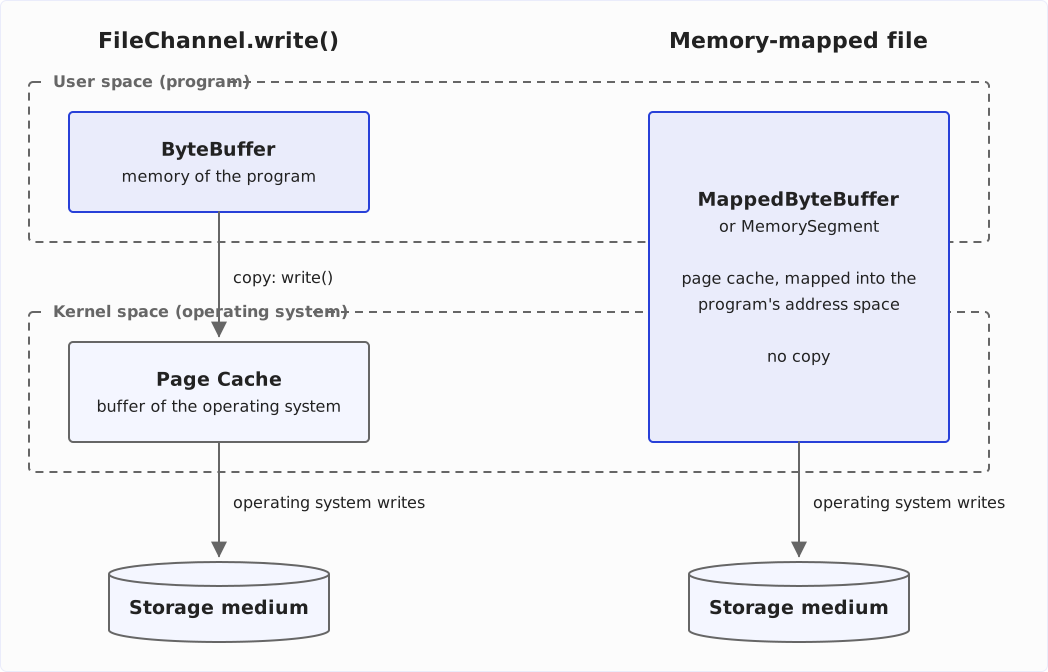
Direct mapping saves one copy per access. With conventional writing, channel.write() copies the data from the ByteBuffer in user space (the program’s memory) into the operating system’s page cache in kernel space; from there, the operating system writes it to the storage medium. A memory-mapped file maps the pages of the page cache directly into the program’s address space – the copy between user space and kernel space is gone:
The following code is an elegant rewrite of the example from the section “How to read or write data at a specific position” (in which a file was written from back to front and then read at random positions) – using a MappedByteBuffer:
Path path = Path.of("mapped-byte-buffer-demo.bin");
try (FileChannel channel = FileChannel.open(path,
        StandardOpenOption.CREATE, StandardOpenOption.WRITE,
        StandardOpenOption.READ)) {
  MappedByteBuffer buffer =
          channel.map(FileChannel.MapMode.READ_WRITE, 0, 256);

  // Write backwards
  for (int pos = 255; pos >= 0; pos--) {
    buffer.put(pos, (byte) pos);
  }

  // Read from random positions
  for (int i = 0; i < 10; i++) {
    int pos = ThreadLocalRandom.current().nextInt((int) channel.size());
    byte b = buffer.get(pos);
    System.out.printf("Byte at position %d: %d%n", pos, b);
  }
}
Characteristics of memory-mapped files
Please note the following when using memory-mapped files:
- You must specify the position and size of the section to be mapped at the beginning. In the example, the first 256 bytes are mapped. If the file does not exist, a 256-byte file is created. If the file exists and is smaller, it is expanded to 256 bytes. If the file is larger, its size and contents after the first 256 bytes remain unchanged.
map()can map a maximum of 2 GB – more precisely,Integer.MAX_VALUEbytes, because aByteBufferaddresses its content with anint. Since Java 22, there is a second variant ofmap()that returns aMemorySegment; its size is along, and the limit is gone. I show you how in the section “Memory-mapped files since Java 22”.MappedByteBufferdoes not implement theCloseableinterface. Therefore, in the example above, we cannot create it within thetryblock. There is also no method to “un-map” it manually. On Windows, a mapped file therefore cannot be deleted – the attempt ends with anAccessDeniedException; Linux and macOS allow the deletion. The file is un-mapped only when the garbage collector removes theMappedByteBuffer: on creation, theMappedByteBufferregisters a so-called cleaner, which is invoked as soon as the buffer is only “phantom reachable” – and when that happens is up to the garbage collector. If you want to release the file deterministically, use theMemorySegmentvariant available since Java 22. The former workaround viasun.misc.Unsafe.invokeCleaner()has been marked for removal since Java 23.- The operating system writes changes to the
MappedByteBufferto the file in the background – when, it decides itself. To force the write to the storage medium, you have to callbuffer.force(); since Java 13, you can write a subrange withbuffer.force(index, length).channel.force(), on the other hand, only guarantees – according to the JavaDoc – that data written via the channel’s write methods reaches the storage medium. The two methods call different system functions:channel.force()callsfsync()for the whole file (on Windows,FlushFileBuffers()), whilebuffer.force()callsmsync()for the mapped memory region (on Windows,FlushViewOfFile()). Whetherfsync()also writes the pages changed through the mapping depends on the operating system.
Creating a MappedByteBuffer from a FileInputStream / FileOutputStream
We have seen earlier that we can also create a FileChannel using FileInputStream.getChannel() or FileOutputStream.getChannel(). What happens if we try to map such a channel into memory?
Since that FileChannel is independent of FileInputStream or FileOutputStream, the following is possible without problems:
var fis = new FileInputStream(fileName);
var channel = fis.getChannel();
var map = channel.map(FileChannel.MapMode.READ_ONLY, 0, channel.size());
The following, however, does not work:
var fos = new FileOutputStream(fileName);
var channel = fos.getChannel();
var map = channel.map(FileChannel.MapMode.READ_WRITE, 0, channel.size());
The call channel.map() results in a NonReadableChannelException because the FileChannel created by FileOutputStream.getChannel() allows only write access – MapMode.READ_WRITE, however, requires read access.
There are three modes: READ_ONLY, READ_WRITE, and PRIVATE. With PRIVATE (copy-on-write), changes to the buffer stay in memory and do not end up in the file – handy if you want to modify a file on a trial basis. There is no WRITE_ONLY; READ_WRITE and PRIVATE require a channel opened for reading and writing. For non-volatile memory (NVM), Java 14 added the sync modes in jdk.nio.mapmode.ExtendedMapMode.
Memory-mapped files since Java 22: MemorySegment and Arena
Since Java 22, there is a second variant of map() that belongs to the Foreign Function & Memory API: channel.map(mode, offset, size, arena). It returns not a MappedByteBuffer but a MemorySegment. That resolves the two limitations from the section “Characteristics of memory-mapped files”:
- The size is a
long– so you can map a 3 GB file in one piece. - The segment belongs to an arena, which determines the lifetime of the mapping. When you close the arena, the file is un-mapped immediately – without waiting for the garbage collector.
Here is the MappedByteBuffer example from above with MemorySegment and Arena:
Path path = Path.of("memory-segment-demo.bin");
try (FileChannel channel = FileChannel.open(path,
        StandardOpenOption.CREATE, StandardOpenOption.WRITE,
        StandardOpenOption.READ);
     Arena arena = Arena.ofConfined()) {
  MemorySegment segment =
          channel.map(FileChannel.MapMode.READ_WRITE, 0, 256, arena);

  // Write backwards
  for (int pos = 255; pos >= 0; pos--) {
    segment.set(ValueLayout.JAVA_BYTE, pos, (byte) pos);
  }

  // Read from random positions
  for (int i = 0; i < 10; i++) {
    int pos = ThreadLocalRandom.current().nextInt((int) channel.size());
    byte b = segment.get(ValueLayout.JAVA_BYTE, pos);
    System.out.printf("Byte at position %d: %d%n", pos, b);
  }
}
The arena is the second resource in the try block. When the block is left, the arena is closed, and the mapping is released – you can delete or move the file right away. Instead of MappedByteBuffer.put() and get(), you use MemorySegment.set() and get() with a ValueLayout that specifies the data type; for types other than byte, there are, for example, ValueLayout.JAVA_INT and ValueLayout.JAVA_LONG. And as with MappedByteBuffer, segment.force() forces the write to the storage medium.
The FFM API is far more extensive than a ByteBuffer. Arena.ofConfined(), for example, allows access only from the thread that created the arena – access by multiple threads is allowed by Arena.ofShared(). How arenas, MemorySegment, and ValueLayout fit together is explained in the article about the Foreign Function & Memory API.
How to lock files and file sections
In more complex applications (e.g., a file or database server), several processes access the same file. Then entire files or file sections that are being written to must be locked so that other processes do not write to the same section at the same time.
Locking is supported directly by the operating system and the file system. It therefore also works between several Java programs, between Java programs and any other processes on the same system – and with shared storage, e.g., a network drive, also between processes on different systems.
File locks are not meant for threads within one program, though: a lock is held on behalf of the entire JVM. If a second thread – or the same thread via a second FileChannel – requests a lock on an overlapping region, the JVM throws an OverlappingFileLockException. To synchronize threads, use the tools from java.util.concurrent, such as a ReentrantReadWriteLock.
A distinction is made between shared locks (“read locks”) and exclusive locks (“write locks”). If one process holds an exclusive lock on a file section, no other process can get a lock on the same or an overlapping section – neither an exclusive nor a shared lock. If one process holds a shared lock, other processes can also get a shared lock on the same or an overlapping section.
The following table shows which lock a second process gets when a first one already holds one on the same section:
| First process holds … | … second requests shared lock | … second requests exclusive lock |
|---|---|---|
| shared lock | ✓ | ✗ |
| exclusive lock | ✗ | ✗ |
You can set a lock with the following methods:
FileChannel.lock(position, size, shared)– this method waits until a lock of the requested type (shared = true→ shared;shared = false→ exclusive) can be set for the file section specified bypositionandsize.FileChannel.lock()– this method waits until an exclusive lock can be set for the entire file.FileChannel.tryLock(position, size, shared)– this method tries to set a lock of the requested type for the specified file section. If a lock cannot be obtained, the method does not wait but returnsnullinstead.FileChannel.tryLock()– this method tries to set an exclusive lock for the whole file. If this is not possible, it returnsnull.
A shared lock requires the channel to be open for reading, an exclusive lock requires it to be open for writing – otherwise, you get a NonReadableChannelException or NonWritableChannelException.
If the lock is successfully set, the methods return a FileLock object. You can release the lock using its release() or close() method. Here is a simple example that sets an exclusive lock on the entire file and then writes 1,000 random bytes:
Path path = Path.of("lock-demo.bin");

byte[] bytes = new byte[1000];
ThreadLocalRandom.current().nextBytes(bytes);

try (FileChannel channel = FileChannel.open(path,
        StandardOpenOption.CREATE, StandardOpenOption.WRITE);
     FileLock lock = channel.lock()) {
  ByteBuffer buffer = ByteBuffer.wrap(bytes);
  channel.write(buffer);
}
Performance Tests
I wrote a program to measure the performance of different write methods – at different buffer and file sizes.
In order to obtain a result that is as free of side effects as possible, I repeated each test up to 32 times and then determined the median. I created files from 1 MB to 1 GB in size and provided between 1 KB and 1 MB for the ByteBuffer.
All tests are performed without force(). I want to test the speed at which the data is transferred to the operating system, not the speed of the storage media.
You are welcome to clone the test program from my GitHub Repository and run it on your system.
The test program also measures the write speed of those FileChannels that are created via RandomAccessFile.getChannel() and FileOutputStream.getChannel(). However, since the test results are almost identical to those of FileChannel.open(), I do not show them in the following sections.
Another test maps the file as a MemorySegment – with FileChannel.map() and an Arena, as shown in the section “Memory-mapped files since Java 22: MemorySegment and Arena”. Apart from that, it is built like the MappedByteBuffer test.
Test results
The complete measurements are in the GitHub repository in the results folder.
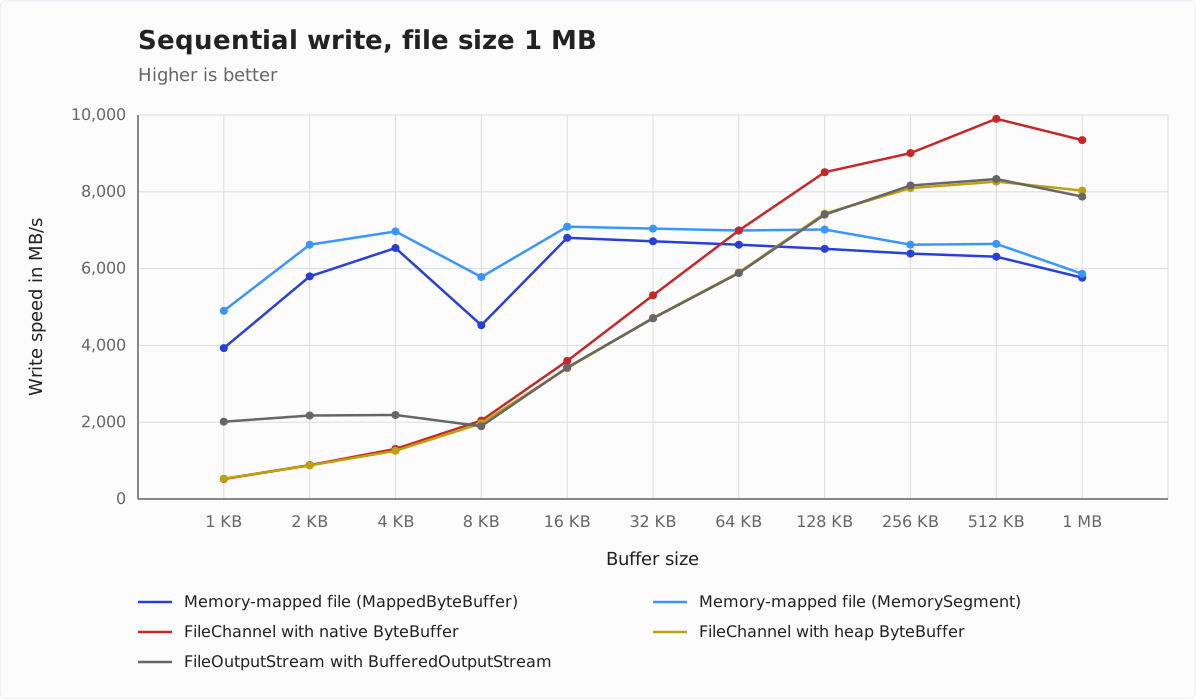
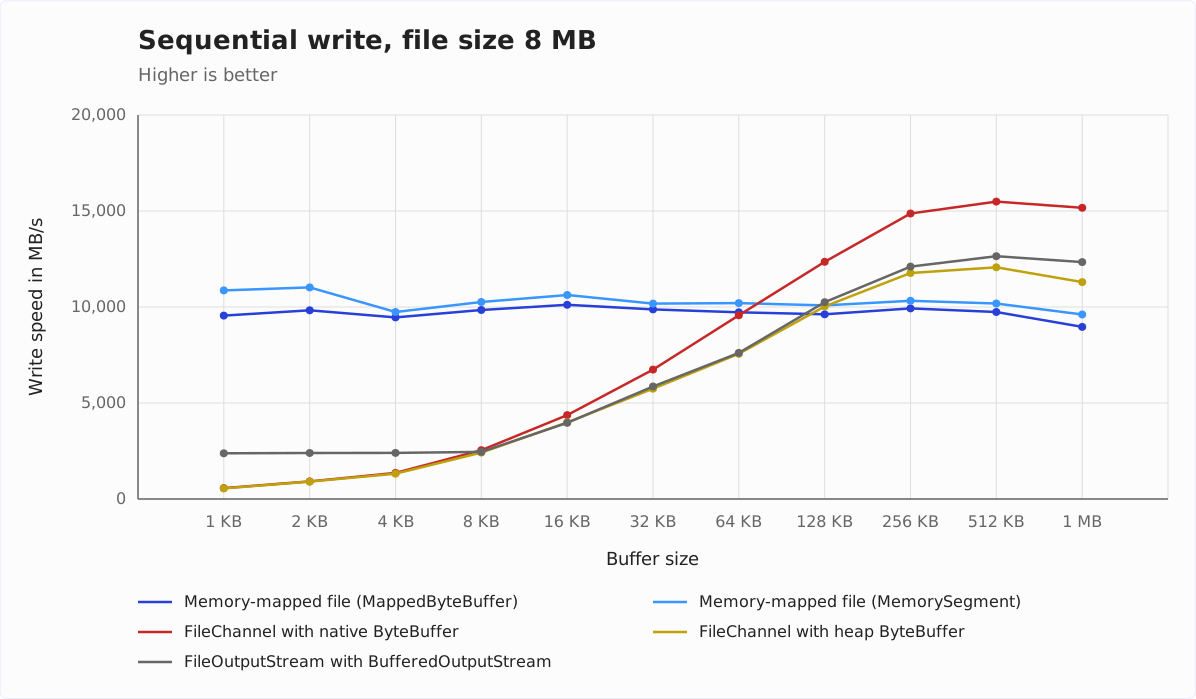
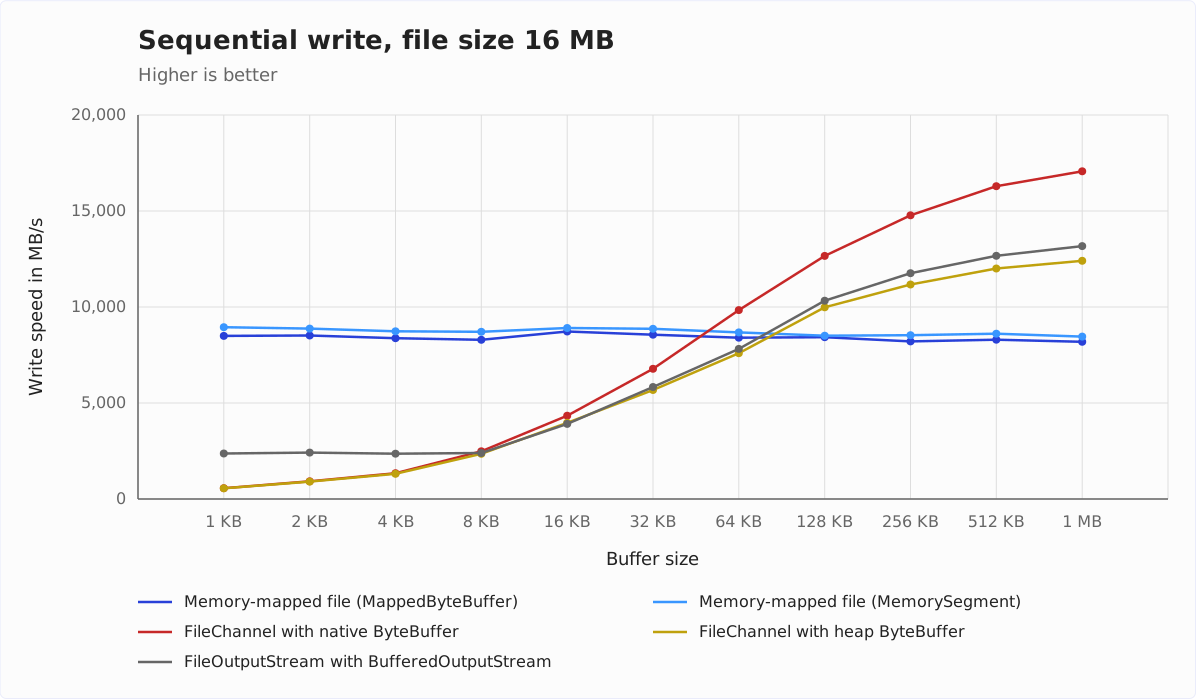
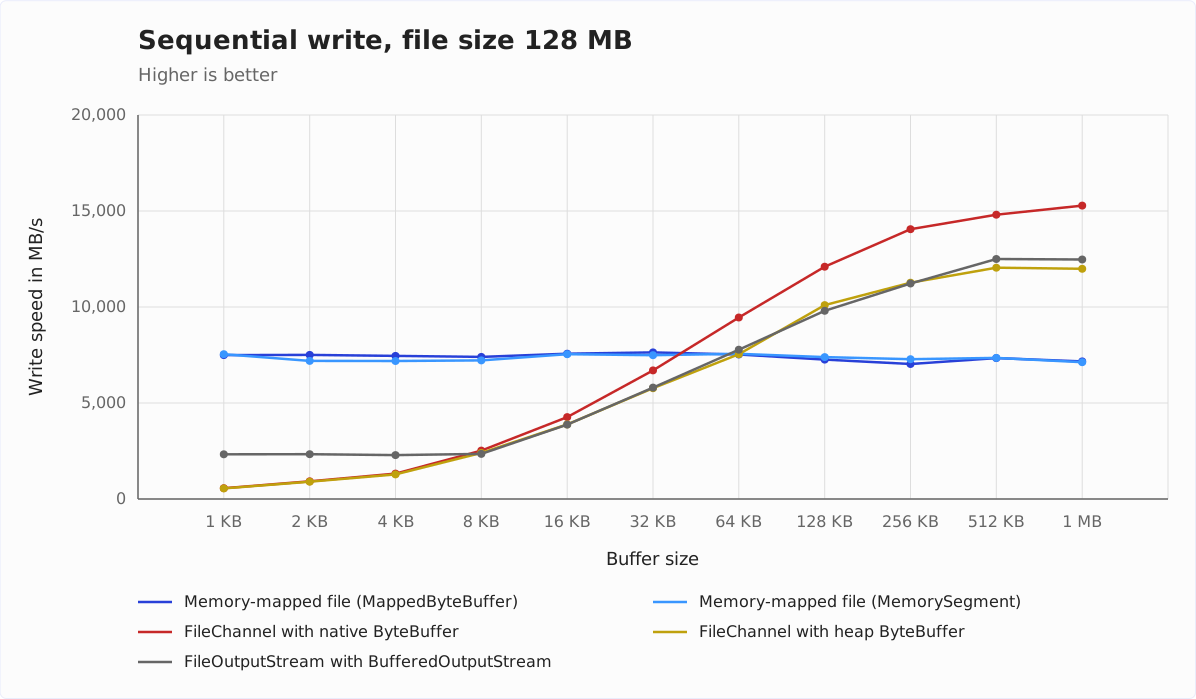
First and foremost, the write speed depends on the buffer size: a FileChannel with a native ByteBuffer writes 520 to 700 MB/s with 1 KB buffers and 8,600 to 17,100 MB/s with 1 MB buffers. Memory-mapped files depend less on the buffer size – when writing files of 8 MB or more sequentially, hardly at all.
Test results for sequential write access
With sequential write access, speed is highest for files of 8 and 16 MB; at 128 MB, it is about a quarter lower for memory-mapped files. For even larger files, the individual measurements fluctuated strongly. The operating system first keeps the written data in memory and only then writes it to the SSD. With large files, this writing is still going on when the next test starts, and it slows that test down. Therefore, I only show results up to a file size of 128 MB.
The following four diagrams show the write speed in relation to the buffer size for file sizes of 1 MB, 8 MB, 16 MB, and 128 MB and five write methods each.
Test results for sequential write access – Analysis
Up to a buffer size of 32 KB, memory-mapped files are fastest – for all four file sizes.
From 64 KB on, a FileChannel with a native ByteBuffer catches up; from 128 KB on, it is faster for all file sizes. With 1 MB buffers, it writes 9,300 to 17,100 MB/s, memory-mapped files 5,800 to 9,600 MB/s.
The MemorySegment is about as fast as the MappedByteBuffer or faster – most clearly with the 1 MB file and small buffers, by up to 28%.
The native ByteBuffer is up to 38% faster than the ByteBuffer on the Java heap. The larger the buffer, the larger the lead – up to 8 KB, it is at most 6%.
Up to a buffer size of 4 KB, FileOutputStream with BufferedOutputStream is faster than FileChannel. From 8 KB buffer size on, stream and channel with heap buffer are about the same speed. The limit of 8 KB is due to BufferedOutputStream’s internal 8 KB buffer. BufferedOutputStream first fills the buffer before it writes the data to the file.
Between 512 KB and 1 MB buffer size, hardly anything changes.
Test results for random write access
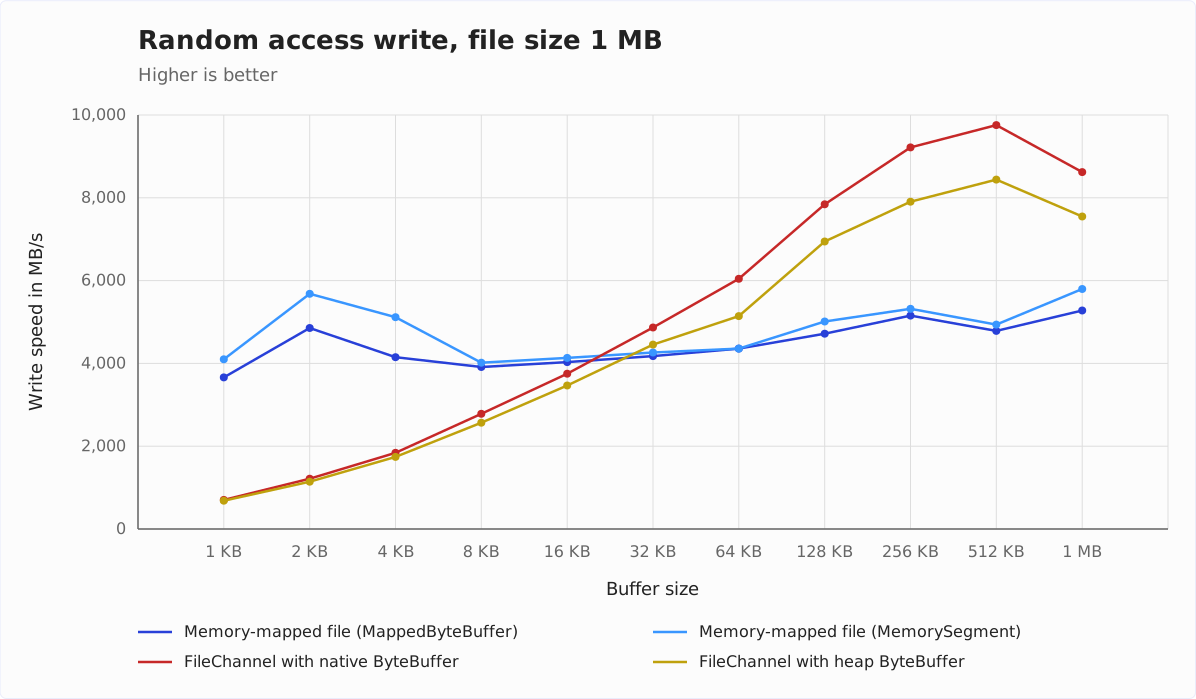
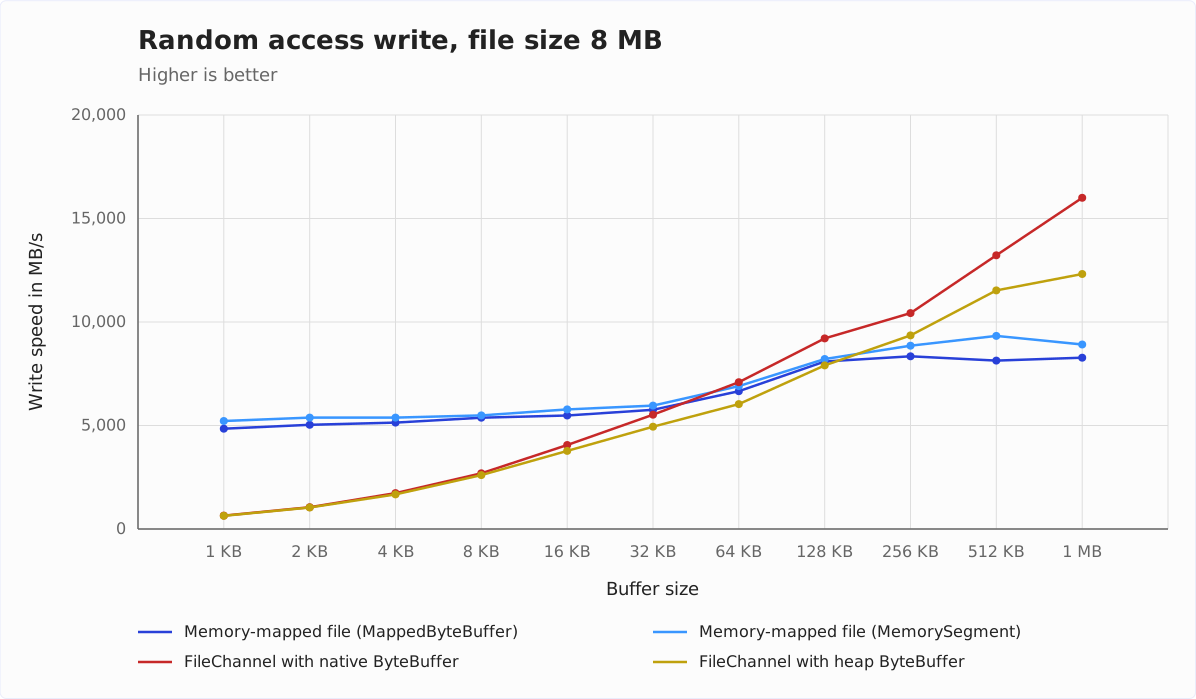
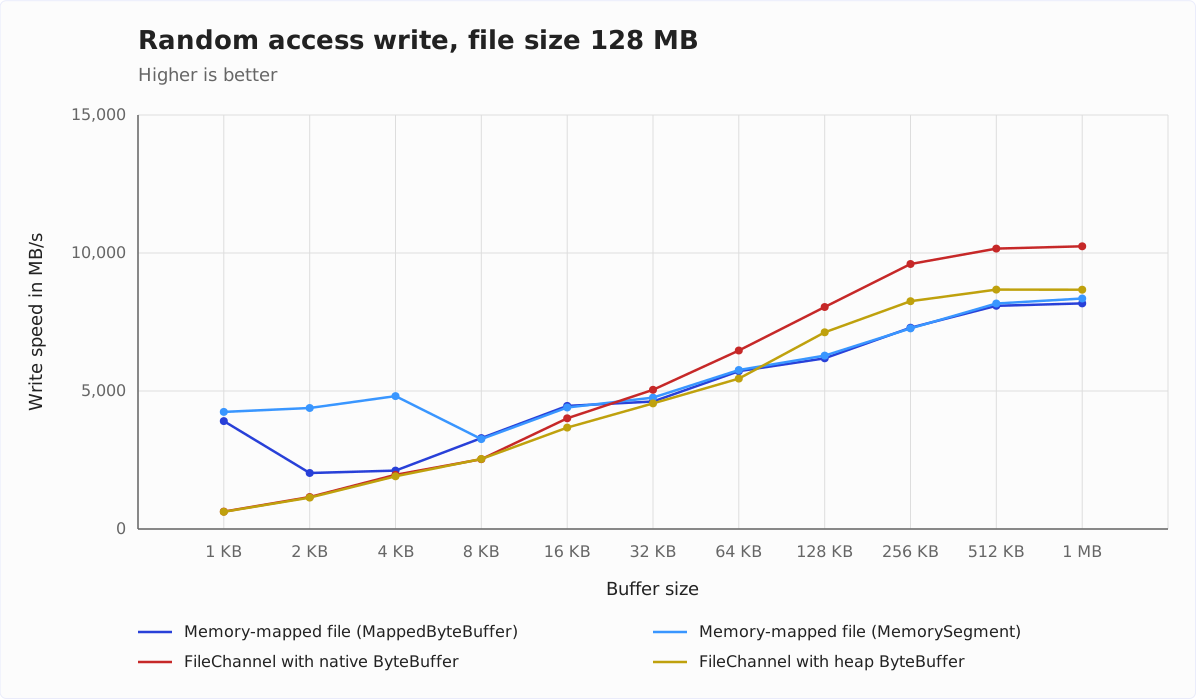
The following three diagrams show the random access write speed in relation to the buffer size for file sizes of 1 MB, 8 MB, and 128 MB and four write methods each. FileOutputStream is missing here because it can only write sequentially. I did not measure larger files for random access.
Test results for random write access – Analysis
With random write access, memory-mapped files are fastest with small buffers: for the 1 MB and 128 MB files up to a buffer size of 16 KB, for 8 MB up to 32 KB.
With larger buffers, a FileChannel with a native ByteBuffer overtakes them. With 1 MB buffers, it writes 8,600 to 16,000 MB/s, memory-mapped files 5,300 to 8,900 MB/s. Here, too, the native ByteBuffer is up to 30% faster than the heap ByteBuffer.
For the 128 MB file, the MappedByteBuffer with 2 to 8 KB buffers fluctuates from run to run between about 2,000 and 4,900 MB/s; the MemorySegment stays at 3,300 to 4,800 MB/s there.
Conclusion
Which method writes fastest depends mainly on how many bytes your program writes with one call – that is, on the size of the blocks in which the data arrives or in which you can collect it. In the diagrams above, that is the buffer size. The following decision tree sums up the measurements:
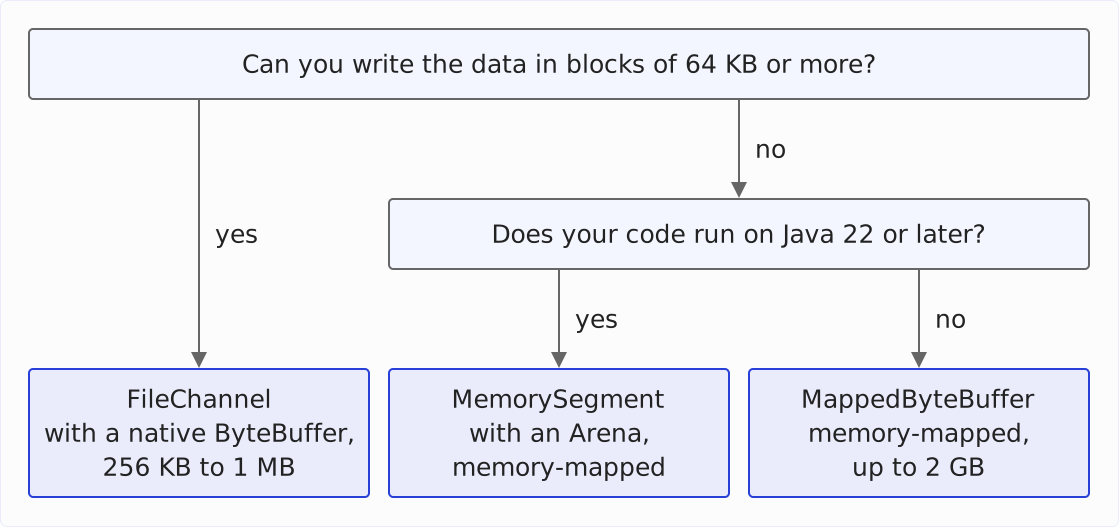
If you can collect the data into blocks of 64 KB or more, use a FileChannel with a native ByteBuffer. It is fastest with blocks of 256 KB to 1 MB – for sequential writing and random access alike.
If you have to write the data in smaller pieces, e.g., individual records at arbitrary positions, use a memory-mapped file. When writing sequentially, small blocks cost it hardly any speed: it writes an 8 MB file sequentially just as fast with 1 KB blocks as with 1 MB blocks, at 9,000 to 11,000 MB/s. A FileChannel only reaches 570 MB/s with 1 KB blocks. With random access, the memory-mapped file is slower with small blocks, but at 8 MB with 1 KB blocks, it still writes 4,800 to 5,200 MB/s, the FileChannel 650 MB/s.
From Java 22 on, you map the file as a MemorySegment with an Arena for this. That is about as fast as a MappedByteBuffer, releases the mapping when the arena is closed, and is not limited to 2 GB.
At 64 KB, the memory-mapped file is only slightly ahead when writing the 8 MB file sequentially, by 6%; otherwise, the FileChannel is just as fast or faster – by 39% for random access to the 1 MB file.
Of course, these are only rough guidelines, derived from measurement results on my system. If you want to tune the performance down to the last MB/s, I recommend testing different write methods and buffer sizes for your specific use case.
Summary
In today’s article, I showed you what FileChannel and ByteBuffer are and how to read and write files with them – at any position, with force() all the way to the storage medium, and with transferTo() directly from one channel to another.
Memory-mapped files save the copy between user space and kernel space. As a MappedByteBuffer, they are limited to 2 GB; since Java 22, you map larger files with MemorySegment and Arena and release the mapping deterministically.
File locks protect file sections against other processes – not against threads of the same JVM, and on Linux and macOS only against processes that request locks themselves.
From the measurements, I derive one rule of thumb: if you write blocks of 64 KB or more, use a FileChannel with a native ByteBuffer of 256 KB to 1 MB. If you write smaller pieces one by one, use a memory-mapped file – from Java 22 on as a MemorySegment.
This concludes the seven-part series about files in Java.
If this article has helped you, I would greatly appreciate a positive review on my ProvenExpert profile. Your feedback helps me improve my content and motivates me to write new informative articles.