The packages java.io and java.nio.file contain numerous classes for reading and writing files in Java. Since the introduction of the Java NIO.2 (New I/O) File API, it is easy to get lost – not only as a beginner. Since then, you can perform many file operations in several ways.
This article series starts by introducing simple utility methods for reading and writing files. Later articles will cover more complex and advanced methods: from channels and buffers to memory-mapped I/O (it doesn’t matter if that doesn’t tell you anything at this point).
The first article covers reading files. First, you learn how to read files that fit entirely into memory:
- What is the easiest way to read a text file into a string (or a string list)?
- How to read a binary file into a byte array?
After that we continue to larger files and the respective classes:
- How do you read larger files and process them at the same time (so you don’t have to keep the entire file in memory)?
- When to use
FileReader,FileInputStream,InputStreamReader,BufferedInputStreamandBufferedReader? - When to use
Files.newInputStream()andFiles.newBufferedReader()?
Besides (and this applies to both small and large files):
- What do I have to keep in mind for file access to work properly on any operating system?
What is the easiest way to read a file in Java?
Up to and including Java 6, you had to write several lines of program code around a FileInputStream to read a file. You had to make sure that you close the stream correctly after reading – also in case of an error. “Try-with-resources” (i.e., the automatic closing of all resources opened in the try block) did not exist at that time.
Only third-party libraries (e.g., Apache Commons or Guava) provided more convenient options.
With Java 7, JSR 203 brought the long-awaited “NIO.2 File API” (NIO stands for New I/O). Among other things, the new API introduced the utility class java.nio.file.Files, through which you can read entire text and binary files with a single method call.
You’ll find out in the following sections what these methods are in detail.
Reading a binary file into a byte array
You can read the complete contents of a file into a byte array using the Files.readAllBytes() method:
String fileName = ...;
byte[] bytes = Files.readAllBytes(Path.of(fileName));
The class Path is an abstraction of file and directory names, the details of which are not relevant here. I go into this in more detail in the article File and Directory Names with File, Path, and Paths. First of all, it is enough to know that you can create a Path object via Paths.get() or – since Java 11 a bit more elegantly – via Path.of().
Reading a text file into a string
If you want to load the contents of a text file into a String, use – since Java 11 – the Files.readString() method as follows:
String fileName = ...;
String text = Files.readString(Path.of(fileName));
The method readString() internally calls readAllBytes() and then converts the binary data into the requested String.
Reading a text file into a String list, line by line
In most cases, text files consist of multiple lines. If you want to process the text line by line, you don’t have to bother splitting up the imported text by yourself. That is done automatically when reading the file using the readAllLines() method available since Java 8:
String fileName = ...;
List<String> lines = Files.readAllLines(Path.of(fileName));
Then you can iterate over the received string list to process it.
Reading a text file into a String stream, line by line
Java 8 introduced streams. Correspondingly, in the same Java version, the Files class was extended by the method lines(), which returns the lines of a text file not as a String list, but as a stream of Strings:
String fileName = ...;
Stream<String> lines = Files.lines(Path.of(fileName));
For example, with only one code statement, you could output all lines of a text file that contain the String “foo”:
try (Stream<String> lines = Files.lines(Path.of(fileName))) {
  lines.filter(line -> line.contains("foo"))
       .forEach(System.out::println);
}
The stream keeps the file open until you close it – unlike readAllLines(), the file is not closed once you have consumed the last element. So always wrap it in a try-with-resources block.
java.nio.file.Files – Summary
The four methods shown above cover many use cases. However, the files read should not be too large, since they are loaded completely into RAM. So you shouldn’t try that with an HD movie.
There is a hard limit on top of that: readAllBytes() places the contents in a single byte array and compares the file size against Integer.MAX_VALUE beforehand. If the file is larger than 2,147,483,647 bytes (just under 2 GB), the method throws an OutOfMemoryError with the message “Required array size too large”. The same applies to readString(), since it calls readAllBytes() internally.
Even for smaller files, there are good reasons not to load them completely into RAM:
- You may want to process the data as quickly as possible before the file is completely loaded.
- If your software runs in containers or a “function-as-a-service” environment, memory may be relatively expensive.
The following chapter describes how you can read files piece by piece and process them at the same time.
How to process large files without keeping them entirely in memory?
This question takes us to the classes and methods that were already available before Java 7 – those that made “let’s quickly read a file” a complicated matter.
Reading large binary files with FileInputStream
In the simplest case, we read a binary file byte by byte and then process these bytes. The FileInputStream class performs this task. In the following example, it is used to output the contents of a file to the console byte by byte.
String fileName = ... ;
try (FileInputStream is = new FileInputStream(fileName)) {
  int b;
  while ((b = is.read()) != -1) {
    System.out.println("Byte: " + b);
  }
}
The FileInputStream.read() method reads one byte at a time from the file. When it reaches the end of the file, it returns -1. Most of the functionality of this class is implemented natively (i.e., not in Java), since it directly accesses the I/O functionality of the operating system.
This access is expensive: Loading a test file of 100 million bytes via FileInputStream takes 30 seconds on my system. That’s only 3.3 MB per second.
I measured all timings in this chapter on an Apple M5 Pro under Java 27, as the median of five runs and without the console output from the examples – that would dominate every measurement. The test file is enwik8: the first 100 million bytes of an English Wikipedia dump from 2006, a standard corpus for testing compression algorithms.
Reading large binary files with the NIO.2 InputStream
With the NIO.2 File API in Java 7, a second method to create an InputStream, Files.newInputStream(), was introduced:
String fileName = ...;
try (InputStream is = Files.newInputStream(Path.of(fileName))) {
  int b;
  while ((b = is.read()) != -1) {
    System.out.println("Byte: " + b);
  }
}
This method returns a ChannelInputStream instead of a FileInputStream because NIO.2 works with so-called channels under the hood. It does not make reading faster: in my measurements, this variant takes 31.5 seconds, about 5% longer than the FileInputStream.
Reading faster with BufferedInputStream
You can accelerate reading the data with BufferedInputStream. It is placed around a FileInputStream and loads data from the operating system not byte by byte, but in blocks of 8 KB and stores them in memory. The bytes can then be read out again bit by bit – and from the main memory, which is much faster.
String fileName = ...;
try (FileInputStream is = new FileInputStream(fileName);
     BufferedInputStream bis = new BufferedInputStream(is)) {
  int b;
  while ((b = bis.read()) != -1) {
    System.out.println("Byte: " + b);
  }
}
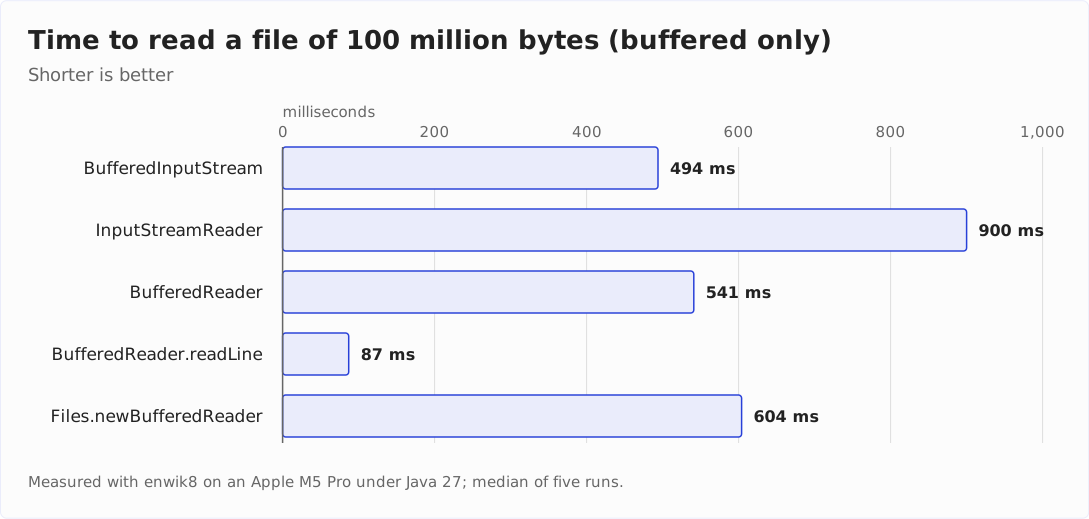
This code reads the same file in 494 ms – 61 times faster than without a buffer. That is just over 200 MB per second.
You should almost always use BufferedInputStream. The only exception is if you do not read data byte by byte, but in larger blocks whose size is adjusted to the block size of the file system. If you are unsure whether BufferedInputStream is worthwhile for your particular application, try it out.
Reading large text files with FileReader
After all, text files are binary files, too. When being loaded, an InputStreamReader can be used to convert their bytes into characters. Place it around a FileInputStream, and you can read characters instead of bytes:
String fileName = ...;
try (FileInputStream is = new FileInputStream(fileName);
     InputStreamReader reader = new InputStreamReader(is)) {
  int c;
  while ((c = reader.read()) != -1) {
    System.out.println("Char: " + (char) c);
  }
}
It’s a bit more comfortable with FileReader: It combines FileInputStream and InputStreamReader, resulting in the following code, which is equivalent to the one above:
String fileName = ...;
try (FileReader reader = new FileReader(fileName)) {
  int c;
  while ((c = reader.read()) != -1) {
    System.out.println("Char: " + (char) c);
  }
}
InputStreamReader also uses an internal 8 KB buffer. Reading the 100 million byte text file character by character takes 900 ms.
Read text files faster with BufferedReader
InputStreamReader already buffers, but reading a text file gets faster still – with BufferedReader:
String fileName = ...;
try (FileReader reader = new FileReader(fileName);
     BufferedReader bufferedReader = new BufferedReader(reader)) {
  int c;
  while ((c = bufferedReader.read()) != -1) {
    System.out.println("Char: " + (char) c);
  }
}
Using a BufferedReader brings the time for reading the test file down from 900 ms to 541 ms. BufferedReader achieves this by extending the InputStreamReader’s 8 KB buffer with another buffer for 8,192 decoded characters.
Another advantage of BufferedReader is that it offers the additional method readLine(), which allows you to read and process the text file not only character by character but also line by line:
String fileName = ...;
try (FileReader reader = new FileReader(fileName);
     BufferedReader bufferedReader = new BufferedReader(reader)) {
  String line;
  while ((line = bufferedReader.readLine()) != null) {
    System.out.println("Line: " + line);
  }
}
Reading complete lines further reduces the total time for reading the test file to 87 ms – another six times faster than character by character. The reason: there is now only one method call per line – instead of one per character.
Reading text files faster with the NIO.2 BufferedReader
With Files.newBufferedReader(), the NIO.2 File API provides a method to create a BufferedReader directly:
String fileName = ...;
try (BufferedReader reader = Files.newBufferedReader(Path.of(fileName))) {
  int c;
  while ((c = reader.read()) != -1) {
    System.out.println("Char: " + (char) c);
  }
}
The BufferedReader created this way takes 604 ms, the same league as the “classically” created one at 541 ms.
Overview performance
The following diagram shows all the methods presented, including the time they need to read a file of 100 million bytes:
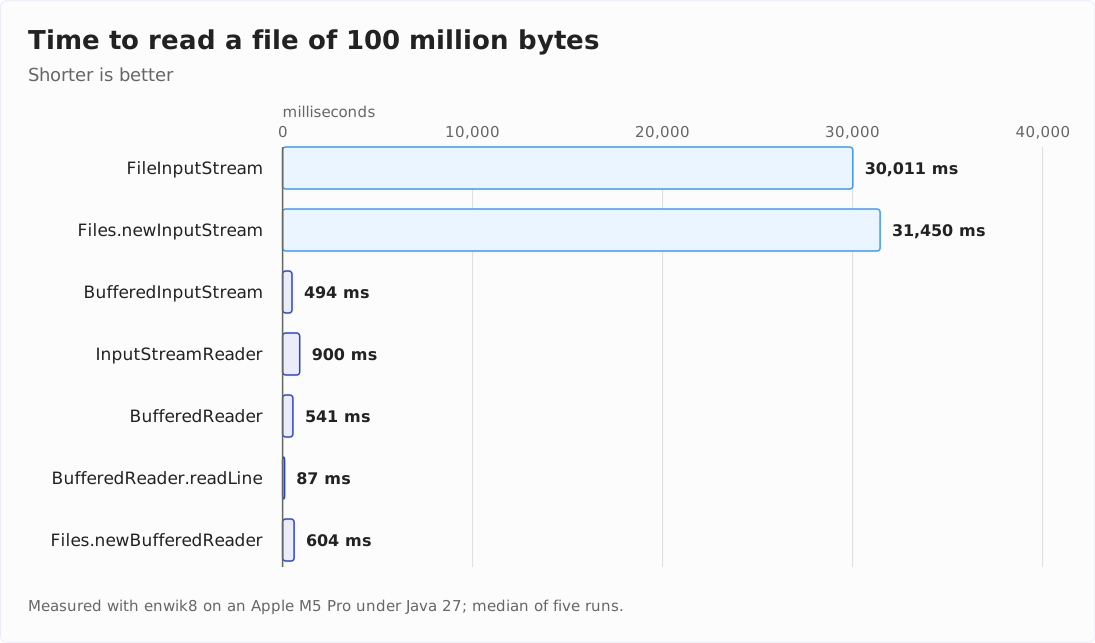
The gap to the unbuffered methods is so large that the bars of the five buffered methods above are hardly visible. Here is a second diagram showing only the buffered methods:
Overview FileInputStream, FileReader, InputStreamReader, BufferedInputStream, BufferedReader
The last sections introduced numerous classes for reading files from the java.io package. The following diagram shows, once again, the relationships of these classes. If this topic is new to you, it helps to take a look at it from time to time.
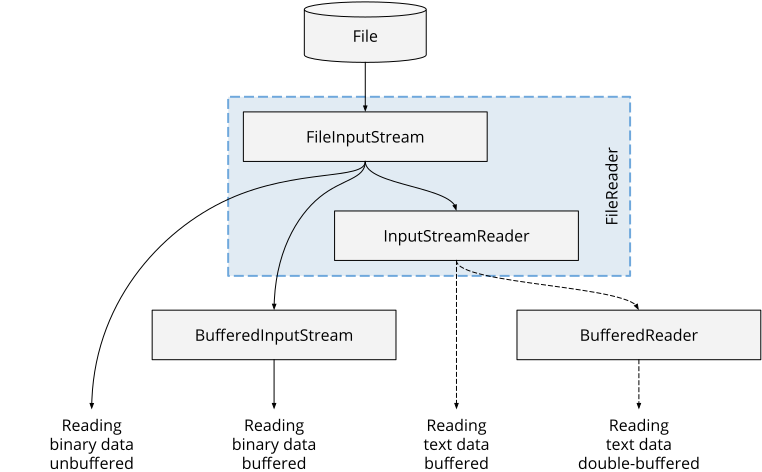
The solid lines represent the flow of binary data; the dashed lines show the flow of text data, i.e., characters and strings. FileReader is a combination of FileInputStream and InputStreamReader.
Operating system independence
In the last chapter, we read text files without any worries. Unfortunately, it’s not always that easy: character encodings, line breaks, and path separators make life difficult even for experienced programmers.
Character encoding
As long as you only deal with English texts, you may have got around the problem. If you also work with texts in other languages, you probably have seen something like this at some point (the example is a German pangram):

Or something like this?

Those strange characters are called mojibake, and they are the result of different character encodings being applied for reading and writing a file.
When I introduced the InputStreamReader class, I briefly mentioned that it converts bytes (numbers) into characters (such as letters and special characters). The so-called character encoding determines which character is encoded by which number.
UTF-8 uses the same bytes as ASCII to represent the first 128 characters (e.g., “A” to “Z”, “a” to “z”, and “0” to “9”). That is the reason why these characters are always readable – even if the encoding is set incorrectly. UTF-8 represents German umlauts by two bytes each.
That is exactly where the two examples above go wrong. The following diagram shows you, for the letter “ö”, which bytes end up in the file and what a reader makes of them when it assumes the wrong encoding – once in each direction:
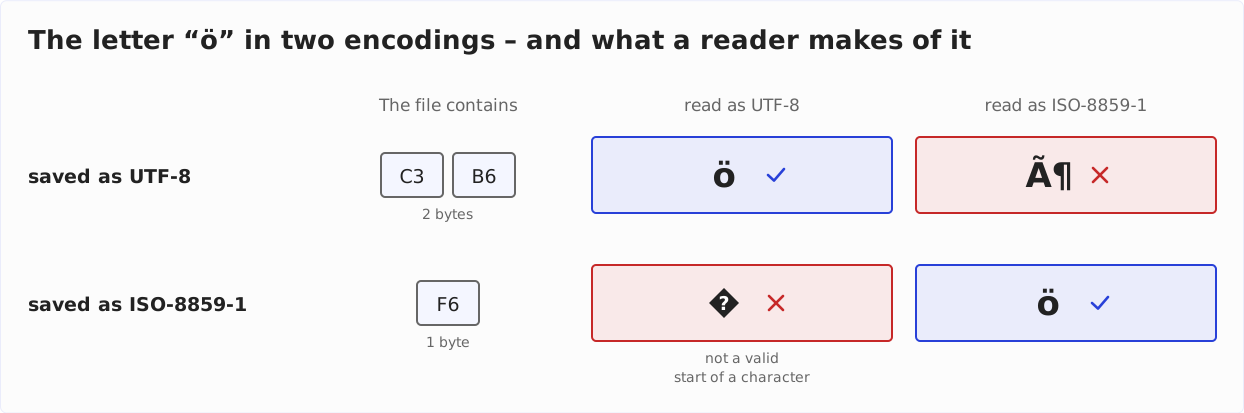
In the first example, I saved the text as UTF-8 and loaded it as ISO-8859-1: the two bytes of the “ö” turn into two separate characters. In the second example, it was the other way round – and there, the single byte of the “ö” is not a valid start of a character in UTF-8. The InputStreamReader inserts the Unicode replacement character U+FFFD for it, which most fonts draw as a diamond with a question mark.
Therefore, always make sure to use the same character encoding when reading a file as when writing it.
What character encoding does Java use by default to read text files?
If no character encoding is specified (as in the previous examples), a standard encoding is applied. Which one that is changed with Java 18.
Since Java 18, the answer is simple: it is always UTF-8. JEP 400 made UTF-8 the default encoding of all standard APIs – regardless of operating system, locale, and configuration.
Up to and including Java 17, the answer depended on which method you used:
FileReaderandInputStreamReaderusedCharset.defaultCharset()when no encoding was given. The JVM derived that encoding from the operating system and the locale: on a German Windows usually Windows-1252, on Linux and macOS mostly UTF-8. The very same code thus produced different results on different machines.Files.readString(),Files.readAllLines(),Files.lines(), andFiles.newBufferedReader(), on the other hand, used UTF-8 from the start.
That inconsistency is precisely what JEP 400 set out to fix. It is also the reason to look twice when you move to Java 18 or newer: if your program reads files written in Windows-1252 through a FileReader, that worked on a German Windows up to Java 17 – and breaks from Java 18 on. For such cases, the system property -Dfile.encoding=COMPAT brings back the old behavior.
So what does that mean for your code? If it runs on Java 18 or newer and reads UTF-8 files, you no longer need to specify the encoding. A StandardCharsets.UTF_8 behind every call is just noise then, stating nothing that would not hold anyway.
Two cases still call for it: your code has to run on Java 17 or older – or the file is not UTF-8. Then the encoding belongs in the call, in every single one.
How to specify the character encoding when reading a text file?
All methods presented so far offer a variant in which you can explicitly specify the character encoding. You need to pass it as an object of the Charset class. You can find constants for standard encodings in the StandardCharsets class. Below, you find all methods with an explicitly specified encoding – using UTF-8 as the example:
Files.readString(path, StandardCharsets.UTF_8)Files.readAllLines(path, StandardCharsets.UTF_8)Files.lines(path, StandardCharsets.UTF_8)new FileReader(file, StandardCharsets.UTF_8)– this constructor only exists since Java 11new InputStreamReader(is, StandardCharsets.UTF_8)Files.newBufferedReader(path, StandardCharsets.UTF_8)
Line breaks
Another obstacle when loading text files is the fact that line breaks are encoded differently on Windows than on Linux and macOS.
- On Linux and macOS, a line break is represented by the “line feed” character (escape sequence “\n”, ASCII code 10, hex
0A). - Windows uses the combination “carriage return” + “line feed” (escape sequence “\r\n”, ASCII codes 13 and 10, hex
0D0A).
Fortunately, most programs today can handle both encodings. It was not always like this. In the past, when people exchanged text files between different operating systems, either all line breaks disappeared, and the entire text was in one line, or special characters appeared at the end of each line.
When you read a text file line by line with Files.readAllLines() or Files.lines(), Java automatically recognizes the line breaks correctly. If you want to split a text into lines in your program code, you can use String.split() as follows:
String[] lines = text.split("\r?\n");When writing files (see the article “How to write files quickly and easily”), I recommend using the Linux version because, nowadays, almost every Windows program (since 2018, even Notepad!) can handle it.
When creating a formatted string with String.format(), you need to pay attention to how you specify the line break:
String.format("Hallo%n")inserts an operating system specific line break. The result differs depending on the operating system on which your program is running.String.format("Hallo\n")always inserts a Linux line break regardless of the operating system.
You can try it with the following program:
public class LineBreaks {
  public static void main(String[] args) {
    System.out.println(String.format("Hallo%n").length());
    System.out.println(String.format("Hallo\n").length());
  }
}
On Linux and macOS, the output is 6 and 6. On Windows, however, it is 7 and 6, since the line break generated with “%n” consists of one more character.
If you need the line separator of the current system, you can get it through System.lineSeparator().
Path names
Also, with path names, we must consider differences between the operating systems. While on Windows, absolute paths begin with a drive letter and a colon (e.g. “C:”) and directories are separated by a backslash (“\”), on Linux and macOS they are separated by a forward slash (“/”), which also indicates the beginning of absolute paths.
For example, the path to my Maven configuration file is:
- ... on Windows:
C:\Users\sven\.m2\settings.xml - ... on Linux:
/home/sven/.m2/settings.xml
You can access the separator used in the current operating system via the File.separator constant or the FileSystems.getDefault().getSeparator() method.
You usually should not need the separator directly. Java provides the classes java.io.File and, starting with Java 7, java.nio.file.Path to construct directory and file paths without having to specify the separator.
At this point, I am not going into further detail. File and directory names, relative and absolute path information, old API, and NIO.2 render the topic complex. I therefore cover it in a separate article: File and Directory Names with File, Path, and Paths.
Summary and outlook
In this article, we have explored various methods of reading text and binary files in Java. We also looked at what you need to consider if you want your software to run on operating systems other than your own.
If you take three rules away from this article, take these:
- Small files are a one-liner:
Files.readString()for text,Files.readAllBytes()for binary data,Files.readAllLines()for text in lines. - Large files you read buffered and process as you go:
BufferedReader.readLine()for text,BufferedInputStreamfor binary data. Reading byte by byte without a buffer costs you a factor of 61. - The character encoding only needs specifying since Java 18 if the file is not UTF-8 or your code also has to run on Java 17 and older. Otherwise UTF-8 is the default, and spelling it out is noise.
In the second part, you will learn about the corresponding methods for writing files in Java.
Subsequently, we’ll discuss the following topics:
- Constructing file and directory paths with the classes
File,Path, andPaths - Directory operations, such as reading the list of files in a directory
- Copying, moving and deleting files
- Creating temporary files
- Reading and writing structured data with
DataOutputStreamandDataInputStream - Serialization: writing and reading Java objects with
ObjectOutputStreamandObjectInputStream
And at the end of the series, we will turn to advanced topics:
- The NIO channels and buffers introduced in Java 1.4, to speed up working with large files in particular
- Memory-mapped I/O for ultra-fast file access without streams
- File locking to access the same files from multiple threads or processes in parallel without conflict
If you enjoyed this article, I’d appreciate a review on my ProvenExpert profile.